Skip to content

How to trim a clip's start or end

Audio episodes usually finish in a few minutes. Or try it without an account

A clip is trimmed on word boundaries, so it never starts or stops halfway through a word.
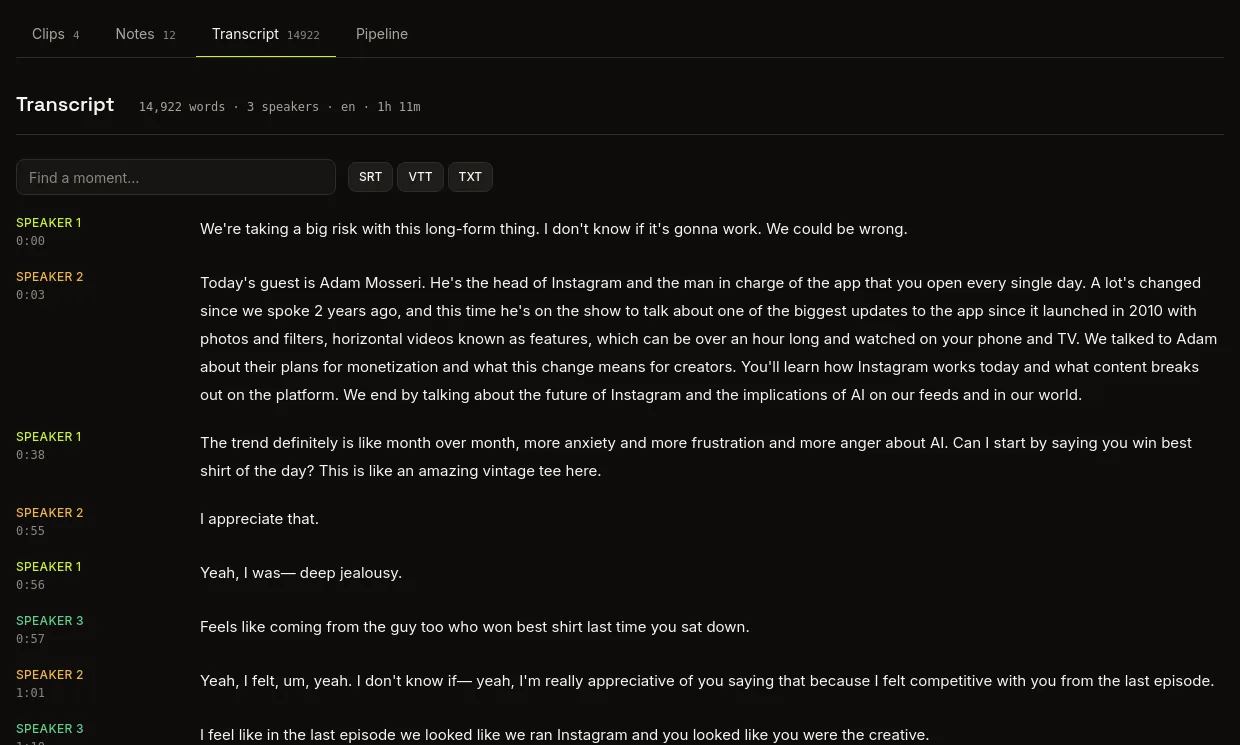
The CastKit transcript tab: speaker labelled turns with timestamps down the left and the transcript beside them.

How CastKit does it

  1. Open the clip

    The transcript of the clip is the timeline.

  2. Select the words

    Select the words before your new start, or after your new end.

  3. Delete them

    The picture, the sound and the captions shorten together.

  4. Fine tune

    Drag the handles on the timeline for the last bit of silence, then export.

What this will not do

Trims land on word boundaries, which is where cuts in speech belong, not on an exact frame. The transcript deletes words; it does not retype them.

Questions

Can I extend a clip past its end?
Make a new clip from the episode transcript with the range you want; see Make your own clip.
Do the captions update?
Yes. Captions are built from the words that are left.
Can I undo a trim?
Yes. Undo steps back through every change.

Try it on your own episode

Paste a link. The first episode runs the whole pipeline for nothing, needs no card, and exports every clip in 1080p with a small CastKit mark.

Audio episodes usually finish in a few minutes. Or try it without an account