31 clip templates for real show formats
Each template is a set of settings CastKit really has: a caption preset, a layout, an aspect ratio, a clip length and an end card look. Copy them into your brand template once and every new clip starts from them. Every value can be changed.
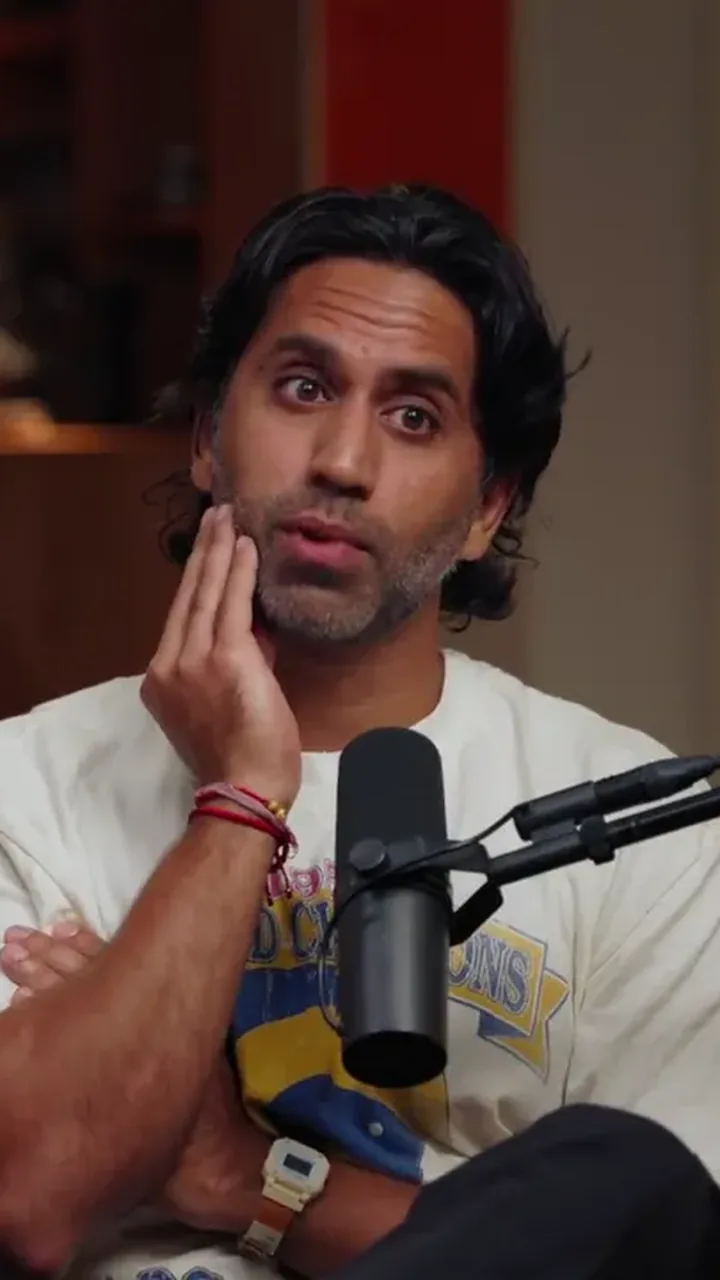
Compare the template's caption style with two close alternatives.
All 31 templates
Open a template to see its settings, a live caption preview and why each choice suits the format.
- Interview podcast
- Solo podcast
- Guest promotion
- Podcast trailer
- Webinar highlight
- Software tutorial
- Product demo
- Course lesson recap
- Sermon clip
- Livestream and gaming
- Comedy moment
- Hot take
- LinkedIn insight
- Instagram feed post
- Customer testimonial
- Panel discussion
- News update
- Fast talker
- Calm conversation
- Late night show
- Lifestyle chat
- Travel and outdoor
- Bright or busy background
- Video with text at the bottom
- True crime story
- Sports talk
- Founder story
- Educational explainer
- Expert Q and A
- YouTube topic clip
- Square timeline clip
Use this template
Save it as your brand template
Set the clip length on Home
Pick the layout and export
Good to know
A template is a starting point, not a lock: CastKit still picks clips from your episode, and the layout is chosen per scene, so check the framing of each clip. The end card adds its seconds to every clip. Free episodes export every clip in 1080p with a small CastKit mark; paid plans export with no mark.
Try it on your own episode
Paste a link. The first episode runs the whole pipeline for nothing, needs no card, and exports every clip in 1080p with a small CastKit mark.