Skip to content

How to edit a clip by deleting words

Audio episodes usually finish in a few minutes. Or try it without an account

In the editor, the transcript is the timeline. Deleting words cuts the picture, the sound and the captions together, and every change saves itself.
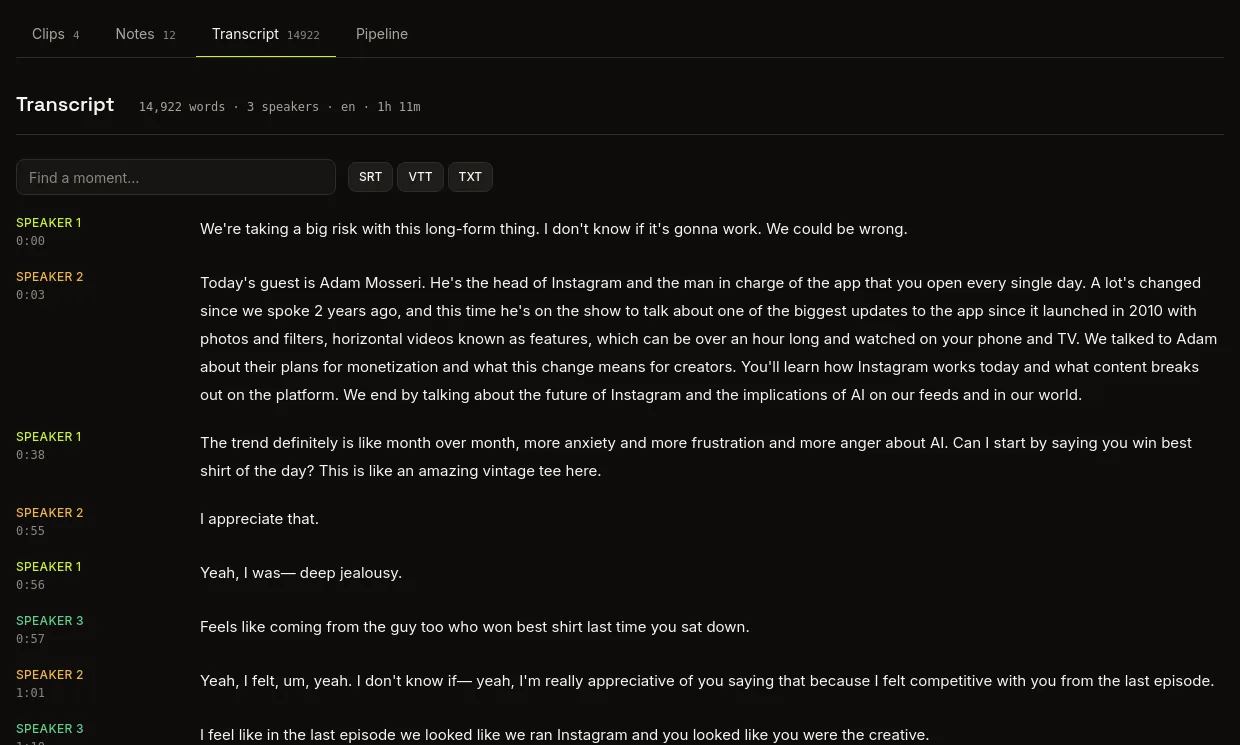
The CastKit transcript tab: speaker labelled turns with timestamps down the left and the transcript beside them.

How CastKit does it

  1. Open the clip

    From the Clips tab, open a clip in the editor. The transcript sits next to the player.

  2. Delete to cut

    Select words and press delete. Restore them the same way, or use undo.

  3. Clean up

    Filler words are grouped with a Remove all button. Pauses over a second can be cut one by one. Cut all occurrences removes a word wherever it appears.

  4. Use the timeline

    Below the player, Video, B-roll and Audio tracks sit on one timeline with Split and Join at the playhead.

What this will not do

You cannot type new words into the transcript or fix a misheard word by retyping it yet; you can delete it. The editor works on one clip at a time. B-roll from your storage needs a paid plan.

Questions

Is there undo?
Yes, and deleted words can always be restored. Edits save automatically.
Can I add my own filler words?
Yes. Add a word in the filler panel and it is grouped with the others.
How do I bleep a word?
Apply a profanity list or mark the word, then choose asterisks in the captions or a bleep in the Sounds panel.

Try it on your own episode

Paste a link. The first episode runs the whole pipeline for nothing, needs no card, and exports every clip in 1080p with a small CastKit mark.

Audio episodes usually finish in a few minutes. Or try it without an account