Skip to content

How to split or join scenes in a clip

Audio episodes usually finish in a few minutes. Or try it without an account

A scene is a stretch of the clip with one crop and one layout. Splitting lets one part be framed differently; joining keeps a shot steady.
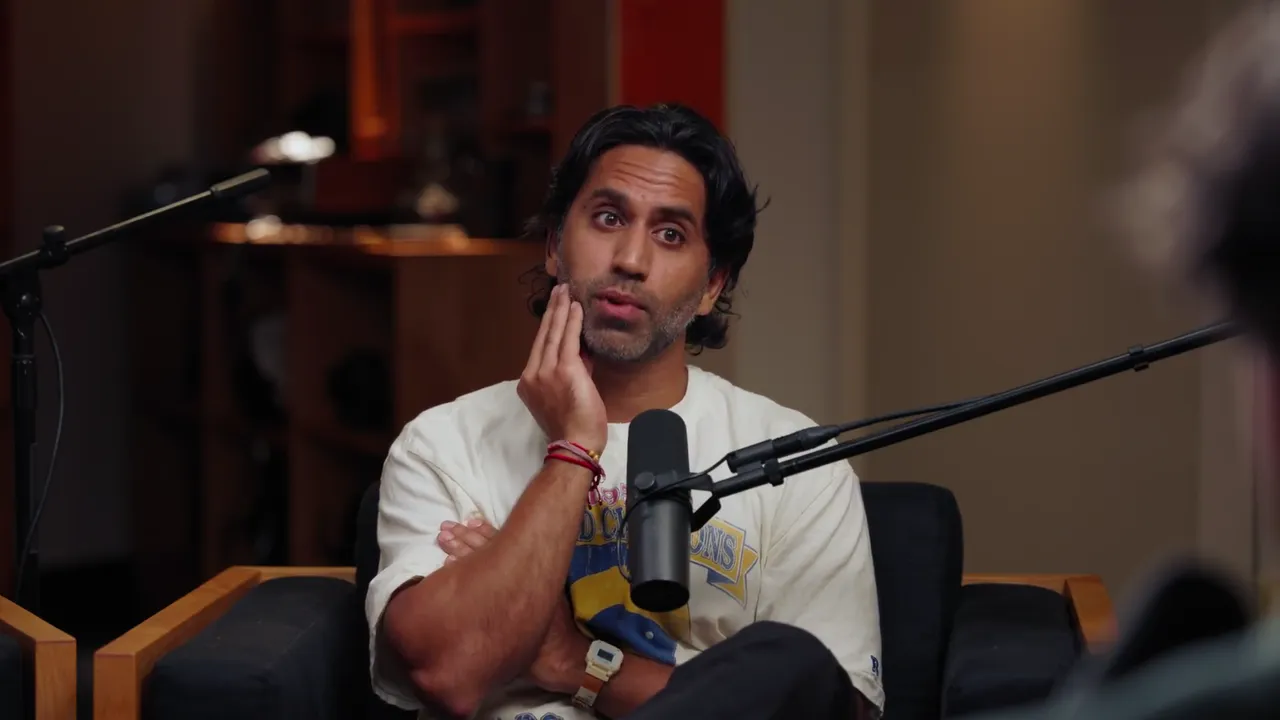
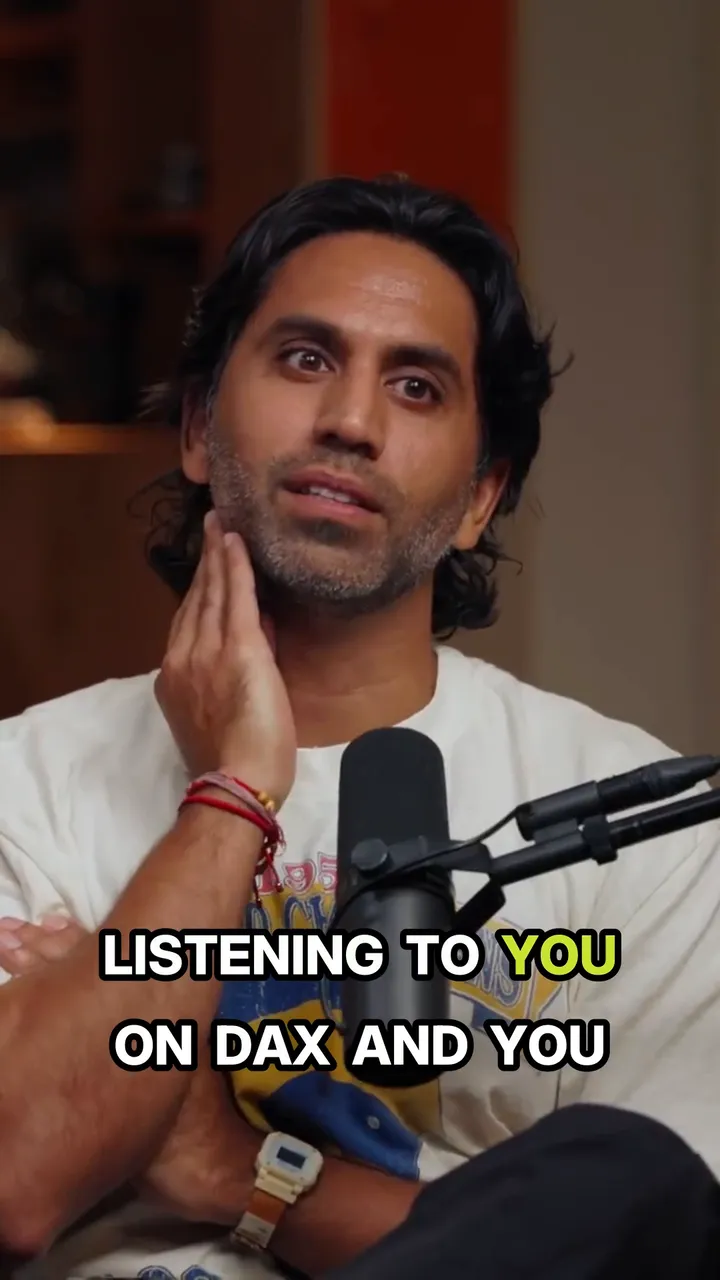
A 9:16 clip exported by CastKit: the speaker centred by the face tracker, with a karaoke caption burned in.
A vertical frame from a Colin and Samir episode with a CastKit caption drawn over it.

How CastKit does it

  1. Move the playhead

    Click the timeline where you want the new scene to start.

  2. Split

    Press Split on the timeline, or Split scene in the Layout tab.

  3. Join

    Join with next on the timeline, or Merge with next in Layout, makes two scenes one.

  4. Frame each scene

    Each scene now has its own crop, layout and transition.

What this will not do

Scenes control framing, not the sound: splitting does not cut anything out of the clip. A split in the middle of a word is fine for framing but shows as a jump if you change the crop there.

Questions

Does splitting remove anything?
No. Nothing is cut; the clip keeps its length.
Why would I split a scene?
To change the crop or layout for part of it, or to place a transition.
Can I undo a split?
Yes, with Undo, or join the two scenes again.

Try it on your own episode

Paste a link. The first episode runs the whole pipeline for nothing, needs no card, and exports every clip in 1080p with a small CastKit mark.

Audio episodes usually finish in a few minutes. Or try it without an account