Skip to content

How to make a clip from a moment you pick

Audio episodes usually finish in a few minutes. Or try it without an account

The suggested clips are a start. When you know the moment you want, select it in the transcript and CastKit makes a clip from exactly that part.
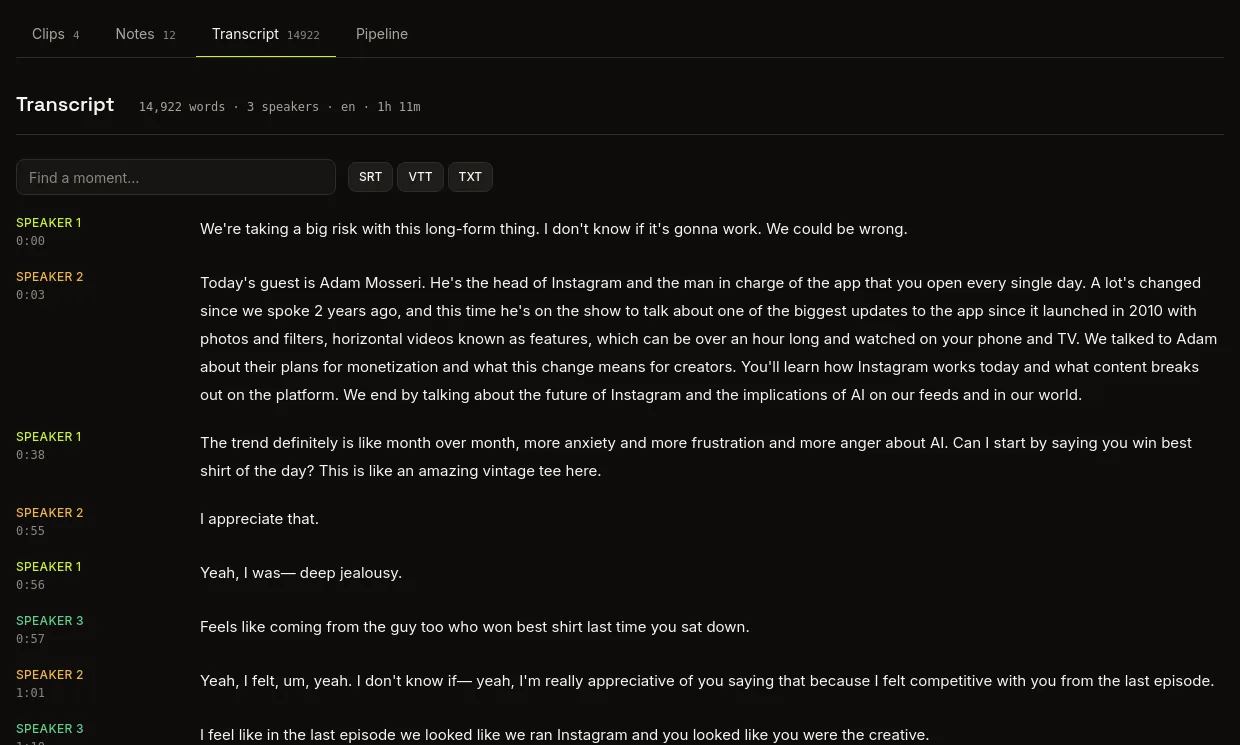
The CastKit transcript tab: speaker labelled turns with timestamps down the left and the transcript beside them.

How CastKit does it

  1. Open the episode transcript

    Open the episode and choose its Transcript tab.

  2. Select the words

    Drag across the words you want. A bar shows the start, the end and the length of your selection.

  3. Press Make clip

    CastKit snaps the selection to whole words, applies your brand template and the speaker framing, and opens the new clip in the editor.

  4. Edit and export

    The clip works like any other: captions, layout, B-roll and export. A re-analysis of the episode never replaces it.

What this will not do

A clip can be from 3 seconds to 15 minutes long. A selection is snapped to whole words, so it can start or end a fraction of a second away from where you let go.

Questions

Does it cost anything extra?
No. Making a clip from your own selection does not use minutes. Exports count as usual.
Can I pick across speakers?
Yes. The clip keeps every speaker in the selection, and the framing follows them.
Where does the clip show up?
With the other clips of the episode, marked as yours.

Try it on your own episode

Paste a link. The first episode runs the whole pipeline for nothing, needs no card, and exports every clip in 1080p with a small CastKit mark.

Audio episodes usually finish in a few minutes. Or try it without an account