Skip to content

How to change a clip's aspect ratio

Audio episodes usually finish in a few minutes. Or try it without an account

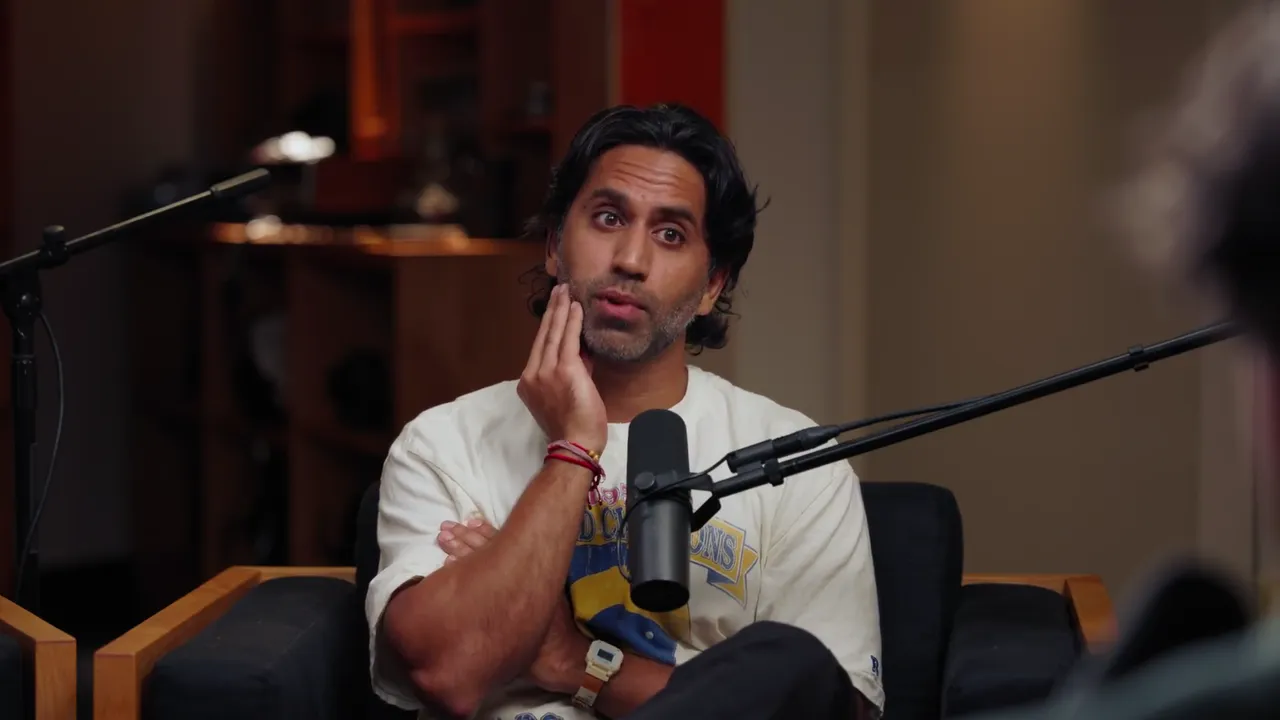
One clip can be exported in every shape. The crop is worked out again for each.
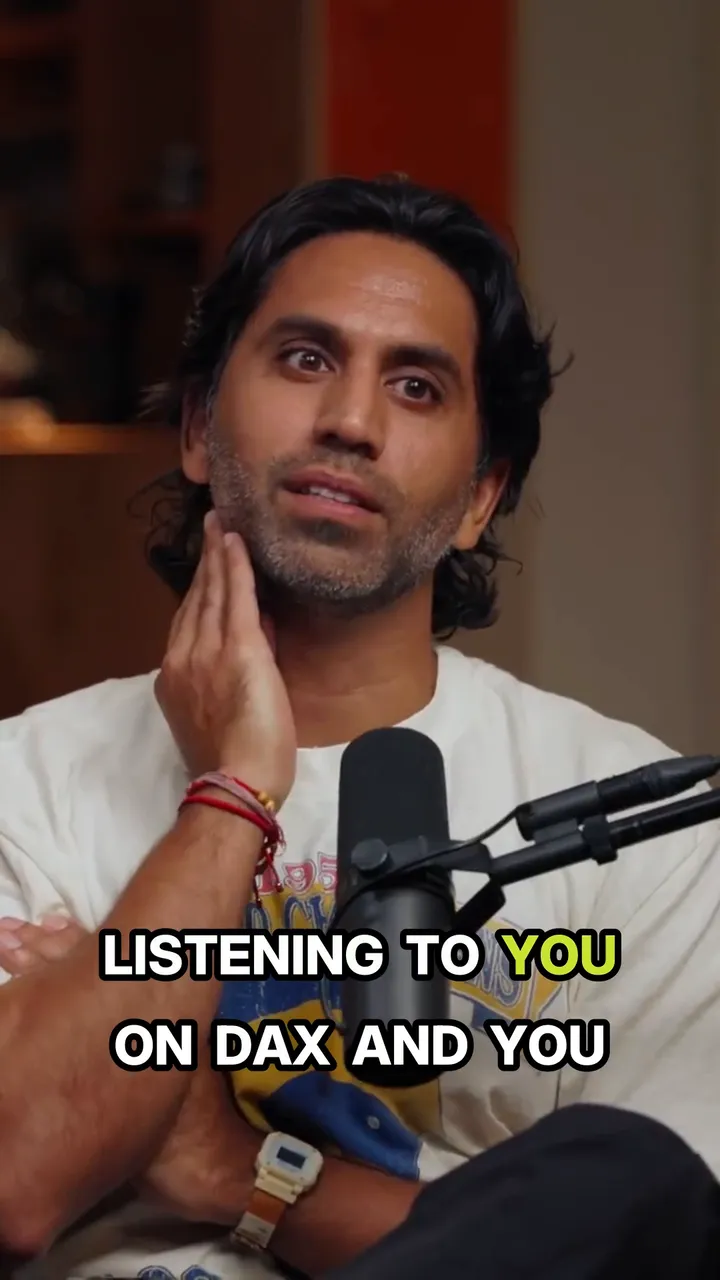
A 9:16 clip exported by CastKit: the speaker centred by the face tracker, with a karaoke caption burned in.
A vertical frame from a Colin and Samir episode with a CastKit caption drawn over it.

How CastKit does it

  1. Open Setup

    Under Aspect, see the four shapes.

  2. Pick one

    9:16 for Shorts, Reels and TikTok; 4:5 and 1:1 for feeds; 16:9 for YouTube and LinkedIn.

  3. Check the framing

    Each scene is reframed for the shape. Fix any scene by dragging its crop.

  4. Export

    Export the shape, then switch to another and export again.

What this will not do

Each export counts as an export on your plan. The free first episode has one export.

Questions

Do captions fit each shape?
Yes. They are laid out for the frame you export.
What size is a square export?
1080 by 1080 at 1080p.
Can I get several shapes at once?
Export one shape at a time from the clip.

Try it on your own episode

Paste a link. The first episode runs the whole pipeline for nothing, needs no card, and exports every clip in 1080p with a small CastKit mark.

Audio episodes usually finish in a few minutes. Or try it without an account