Skip to content

How to export and download a clip

Audio episodes usually finish in a few minutes. Or try it without an account

Exports run in a queue on our side and land in the Exported tab, where they stay. You can export one clip from the editor or several at once from the clips list.
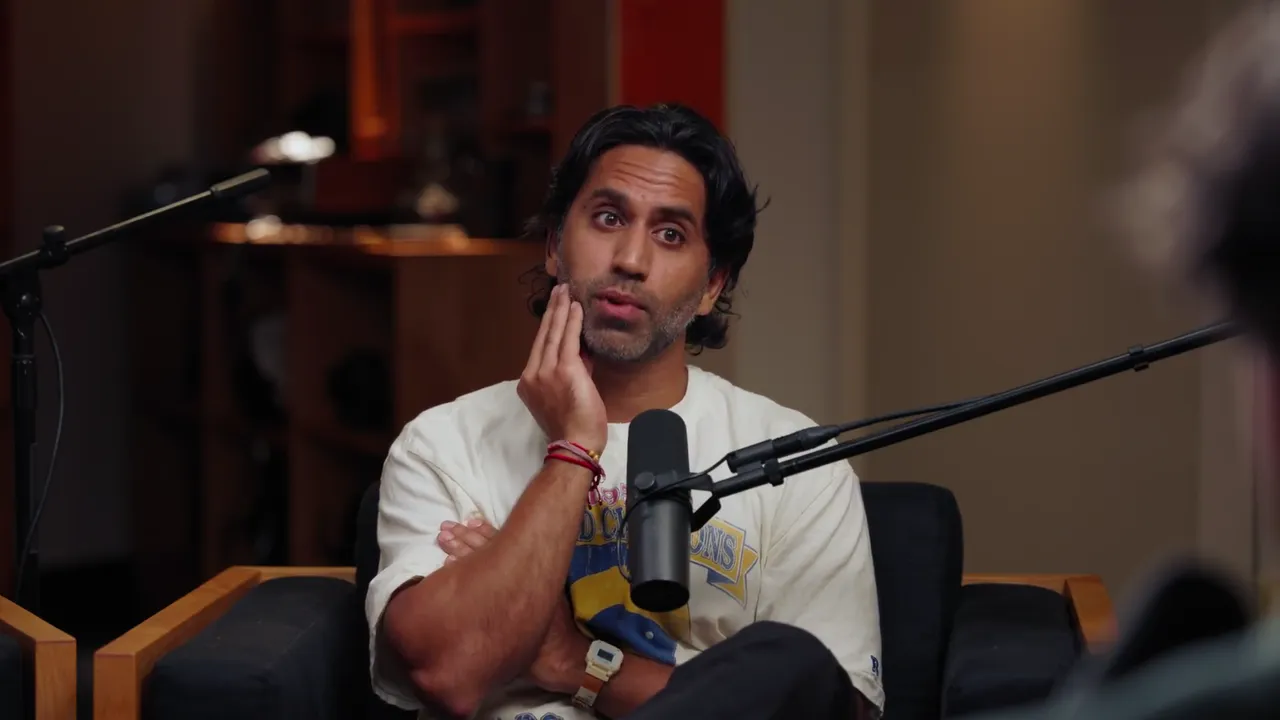

A 9:16 clip exported by CastKit: the speaker centred by the face tracker, with a karaoke caption burned in.
A vertical frame from a Colin and Samir episode with a CastKit caption drawn over it.

How CastKit does it

  1. Press Export

    In the editor or on a clip card, press Export.

  2. Choose the shape

    Pick 9:16, 1:1, 4:5 or 16:9, then 1080p or a smaller 720p file. 4K comes with a paid plan and a 4K upload.

  3. Wait for the render

    A render takes roughly one and a half times the clip's length. You can leave the page.

  4. Download

    Finished files appear in the Exported tab with a download button. Your clips never expire.

What this will not do

On a free episode, every clip exports in 1080p with a small CastKit mark in the corner, one by one or several at once; paid plans export every clip with no mark. Exports do not post to social platforms yet.

Questions

Where are my old exports?
In the Exported tab of the episode, for as long as the episode exists.
Can I share a clip without downloading it?
Yes. Share gives a view link that opens without an account, and you can turn it off at any time.
Why is my export taking long?
Exports queue one after another. Long clips and busy times take longer.

Try it on your own episode

Paste a link. The first episode runs the whole pipeline for nothing, needs no card, and exports every clip in 1080p with a small CastKit mark.

Audio episodes usually finish in a few minutes. Or try it without an account