Skip to content

How to keep the speaker in frame

Audio episodes usually finish in a few minutes. Or try it without an account

The framing step knows who is talking from the transcript's speaker turns and finds faces scene by scene.
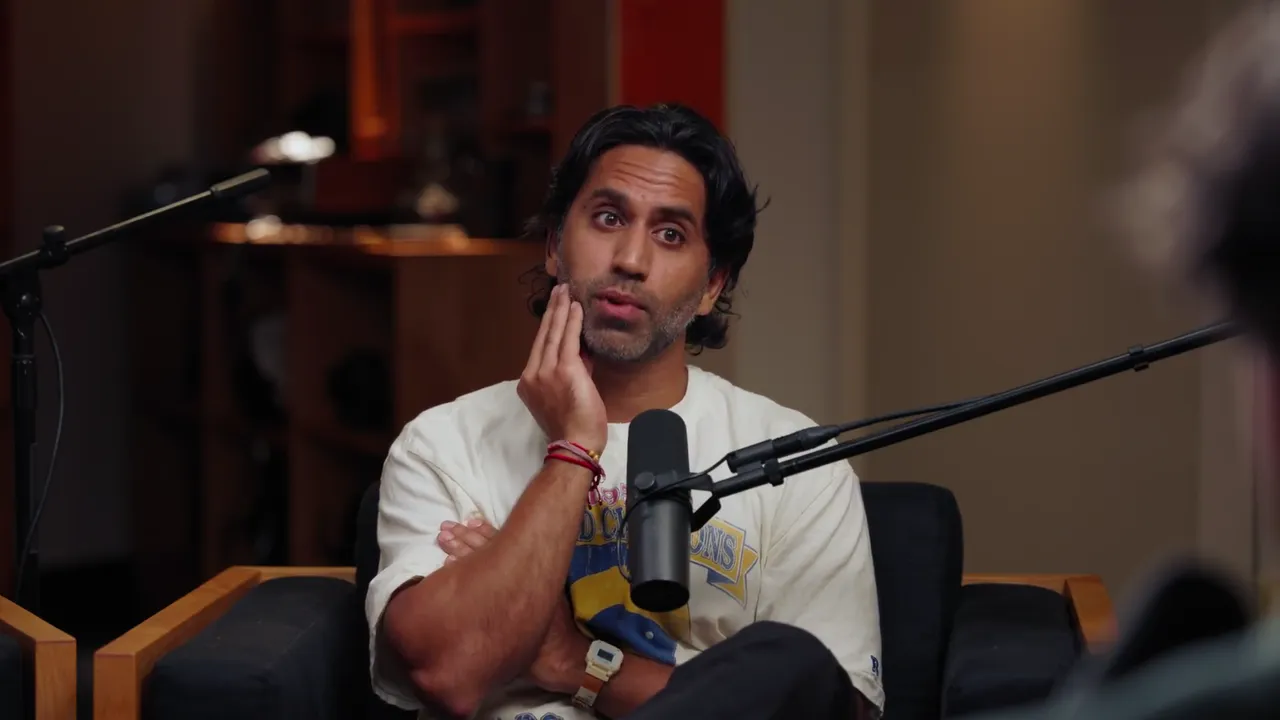
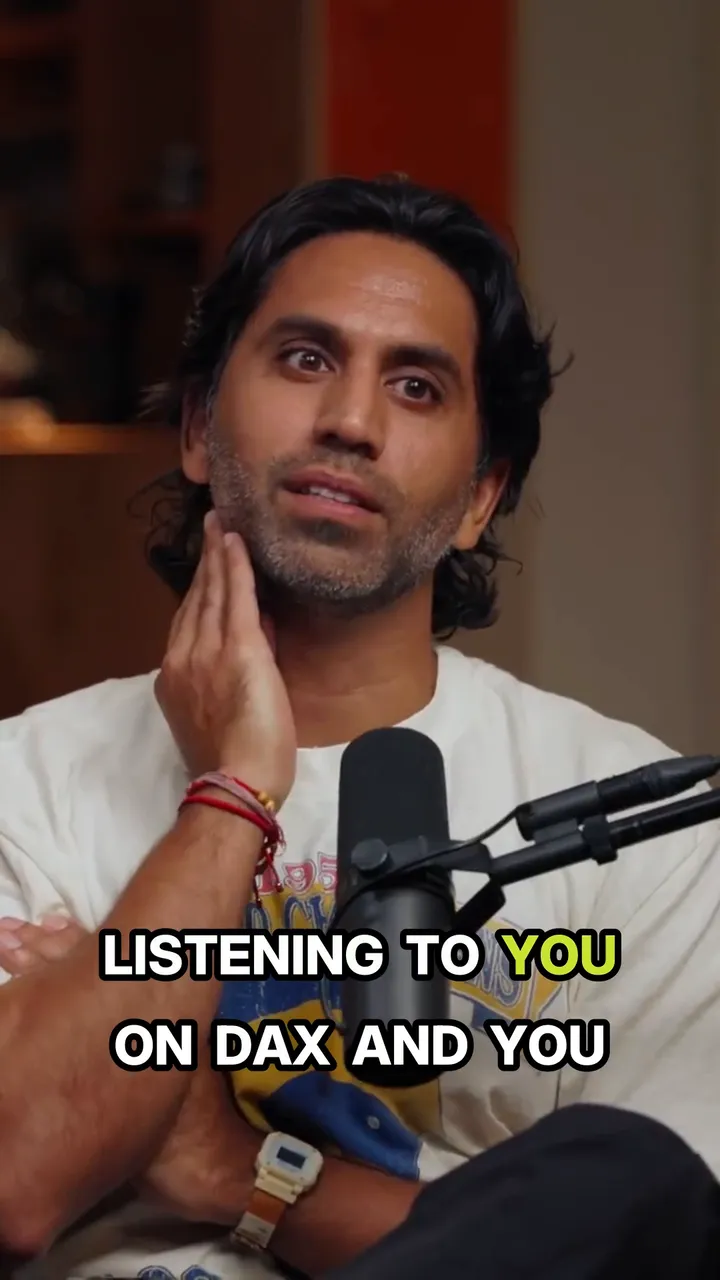
A 9:16 clip exported by CastKit: the speaker centred by the face tracker, with a karaoke caption burned in.
A vertical frame from a Colin and Samir episode with a CastKit caption drawn over it.

How CastKit does it

  1. Open Setup

    Under Framing, see the four choices.

  2. Pick one

    Auto chooses per scene. Follow the voice keeps the crop on whoever is talking. Everyone in frame shows two people at once. Both in one shot stacks them.

  3. Check the scenes

    Play through. Drag the crop on any scene that is off.

  4. Export

    Every shape uses the same tracking.

What this will not do

The crop is set once per scene, not frame by frame, so a speaker who walks across the shot can drift toward the edge. When no face fills enough of the frame, the scene gets a centred crop.

Questions

What about three or more people?
Follow the voice keeps the crop on whoever is talking, however many are on screen.
Does it work on one wide camera?
Yes. That is the case it is built for.
Which sizes use it?
9:16, 1:1, 4:5 and 16:9 all get a crop from the same tracking.

Try it on your own episode

Paste a link. The first episode runs the whole pipeline for nothing, needs no card, and exports every clip in 1080p with a small CastKit mark.

Audio episodes usually finish in a few minutes. Or try it without an account