Skip to content

How to choose export quality

Audio episodes usually finish in a few minutes. Or try it without an account

Paid plans pick the quality of each export. 4K is offered when the recording itself is 4K.
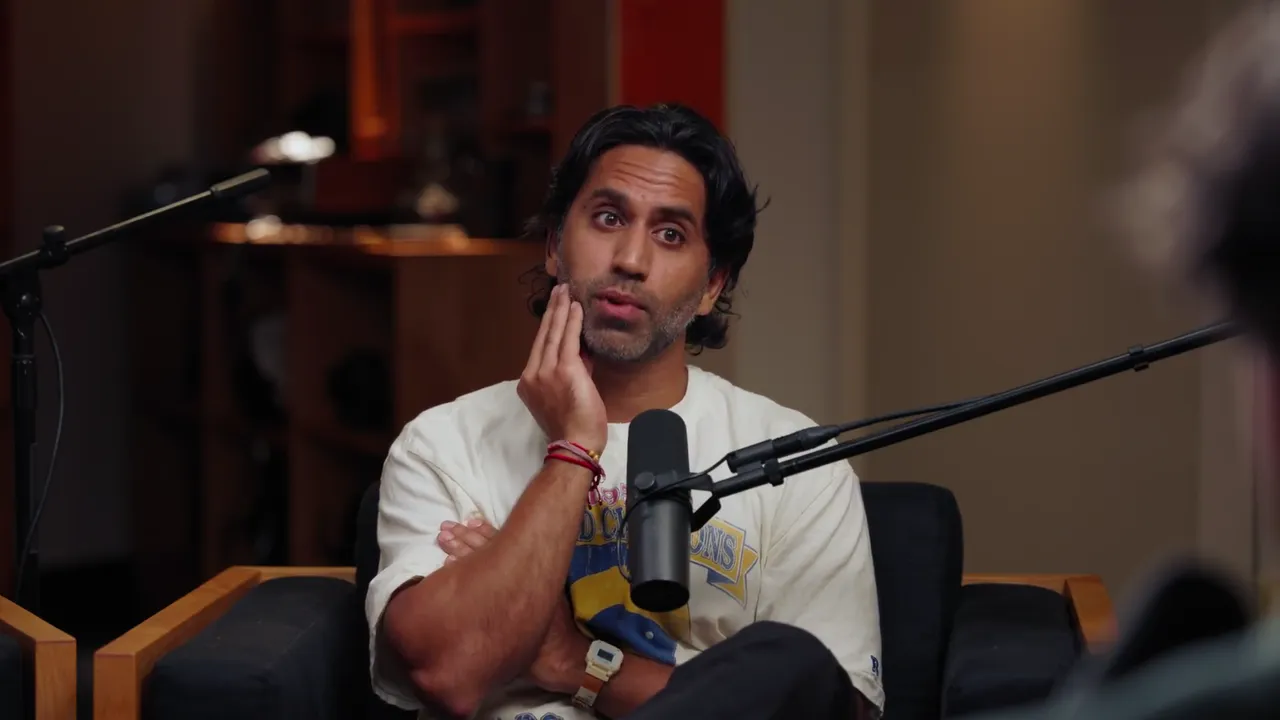
A 9:16 clip exported by CastKit: the speaker centred by the face tracker, with a karaoke caption burned in.
A vertical frame from a Colin and Samir episode with a CastKit caption drawn over it.

How CastKit does it

  1. Open Setup

    Find the export card, or press Go to export.

  2. Pick the quality

    Under Export quality choose 720p, 1080p or 4K.

  3. Pick the shape

    Choose 9:16, 4:5, 1:1 or 16:9.

  4. Export

    The MP4 is ready to download when it finishes.

What this will not do

4K needs a recording whose short side is at least 2160 pixels; a smaller source cannot be made sharper. The free first episode has one export at 1080p with a small CastKit mark, so it has no quality picker.

Questions

Why is 4K missing?
Your recording is under 4K, so 4K is not offered.
Does a paid export carry a mark?
No.
Which quality should I use?
1080p suits every social app; 720p is smaller and faster to upload.

Try it on your own episode

Paste a link. The first episode runs the whole pipeline for nothing, needs no card, and exports every clip in 1080p with a small CastKit mark.

Audio episodes usually finish in a few minutes. Or try it without an account