Add your logo to every clip automatically
Clips get reposted, and a logo is how a viewer finds the show that made them. Add your logo to the brand kit, and CastKit places it bottom right on every clip you export, with your colours, font and caption style alongside it.
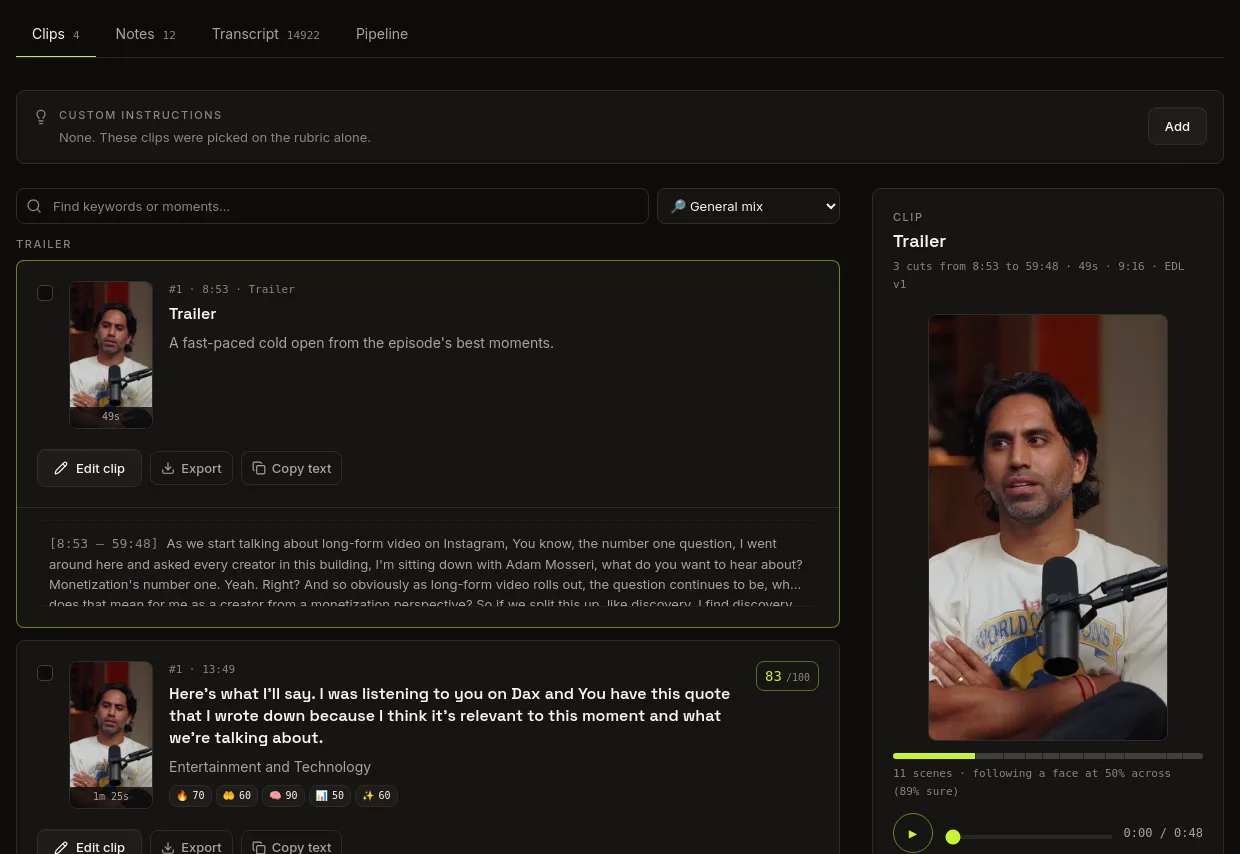
How CastKit does it
Open the brand kit
See where it sits
Make clips
Export
What this will not do
The brand kit can be tried on the free first episode but saving it needs a paid plan. The logo is a still image in a corner; it does not animate. A free export also carries a small CastKit mark, which a paid plan removes.
Questions
- Which file should I use?
- Can I choose the position?
- Does it apply to every clip?
Try it on your own episode
Paste a link. The first episode runs the whole pipeline for nothing, needs no card, and exports every clip in 1080p with a small CastKit mark.