Skip to content

How to upload an audio or video file

Audio episodes usually finish in a few minutes. Or try it without an account

When your recording is not online, or the link is private, upload the file itself. Uploads go through the same pipeline as links.
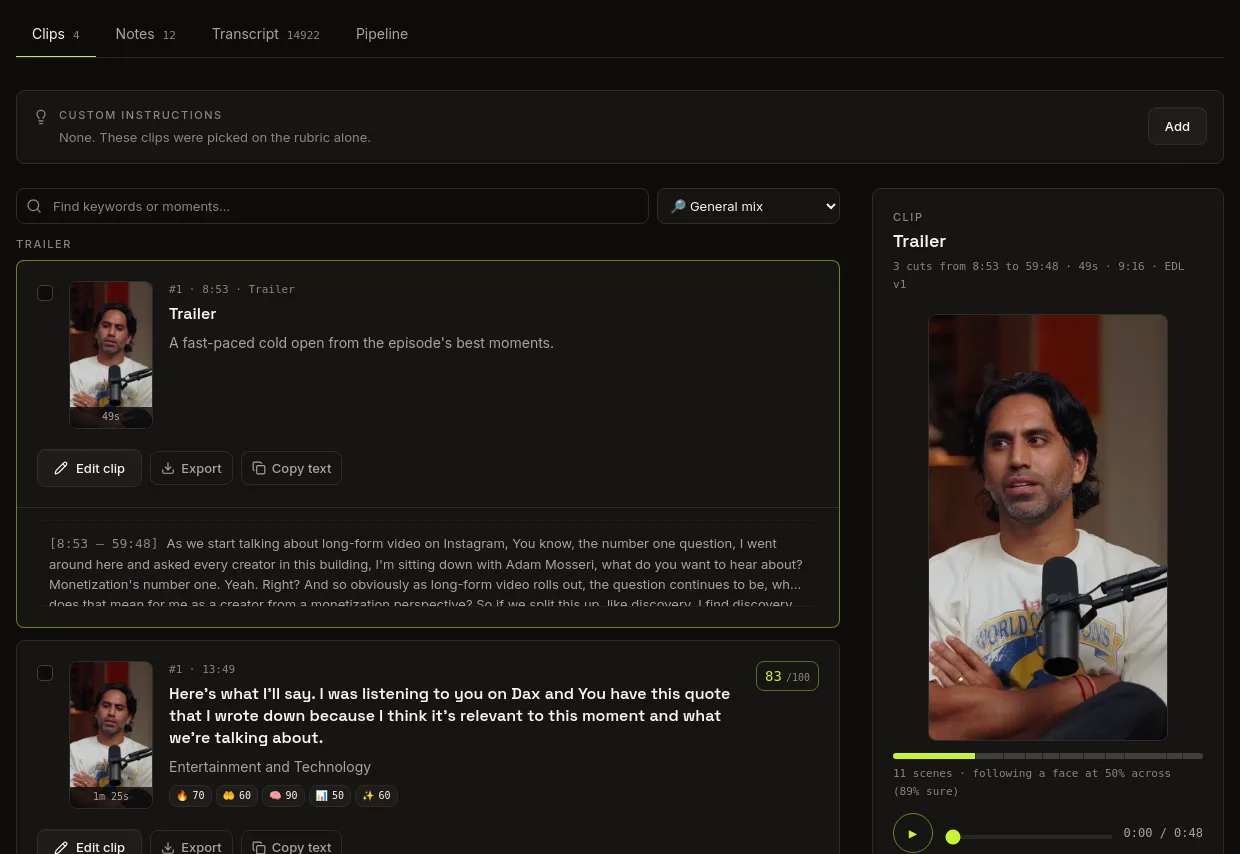
The CastKit clips tab: ranked clips from a Colin and Samir episode with their scores, beside a 9:16 preview and the score breakdown.

How CastKit does it

  1. Choose the file

    On Home, under Or upload file(s), choose one or more files from your computer.

  2. Check the limits

    Audio files up to 1.5 GB, video files up to 2 GB, and up to four hours long.

  3. Press Make clips

    The upload runs first, then the episode starts. Video files keep their picture, so clips are reframed around the faces.

  4. Or record in the app

    The Record tab records your camera or screen in the browser, up to four hours.

What this will not do

Very large files over a slow connection can take longer to upload than to process, so a direct link is faster when you have one. Files over the size or length limits are refused. An audio only file gives audiogram clips, not video.

Questions

Which formats work?
Common audio and video formats such as MP3, M4A, WAV, MP4 and MOV.
My file is over 2 GB. What can I do?
Export a smaller version from your editor, or split the recording in two and upload both parts.
Is my file kept?
The source stays with the episode in your workspace so you can edit and export later. Deleting the episode removes it.

Try it on your own episode

Paste a link. The first episode runs the whole pipeline for nothing, needs no card, and exports every clip in 1080p with a small CastKit mark.

Audio episodes usually finish in a few minutes. Or try it without an account