Skip to content

How to change who is in frame

Audio episodes usually finish in a few minutes. Or try it without an account

Each scene of a clip has its own crop, computed from the faces in it. You can change the framing rule for a clip, or move the crop on one scene.
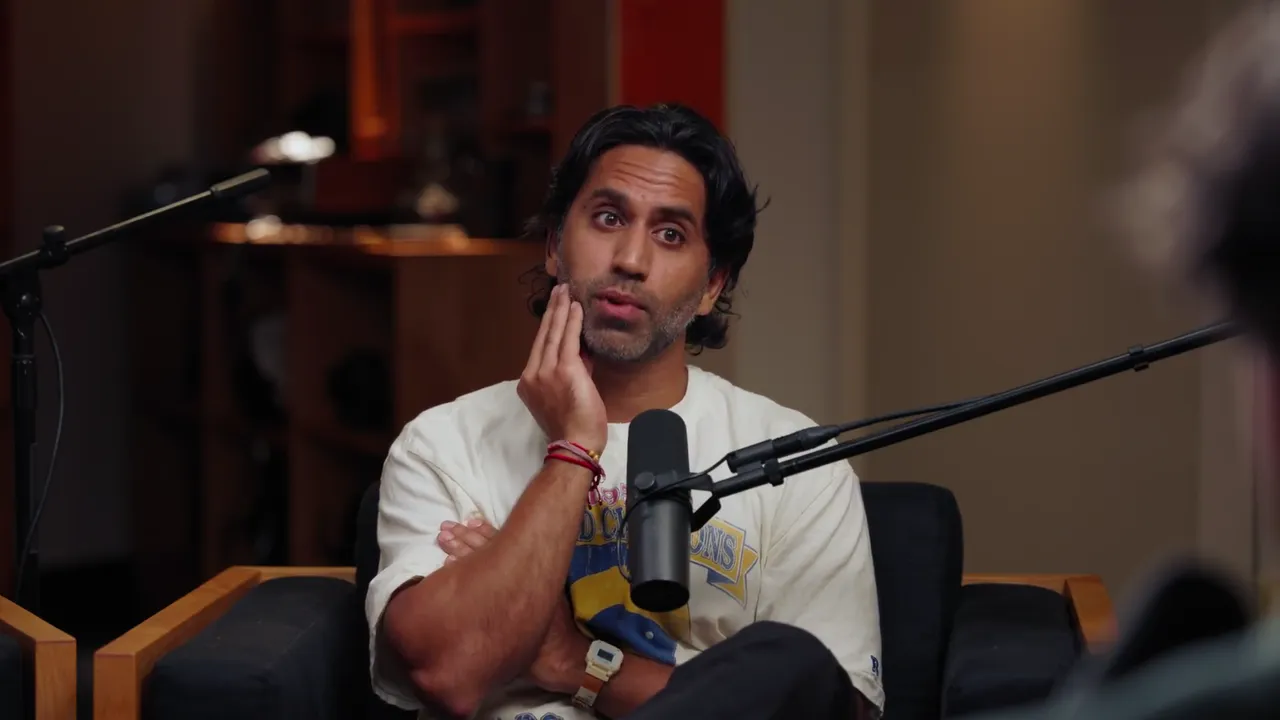
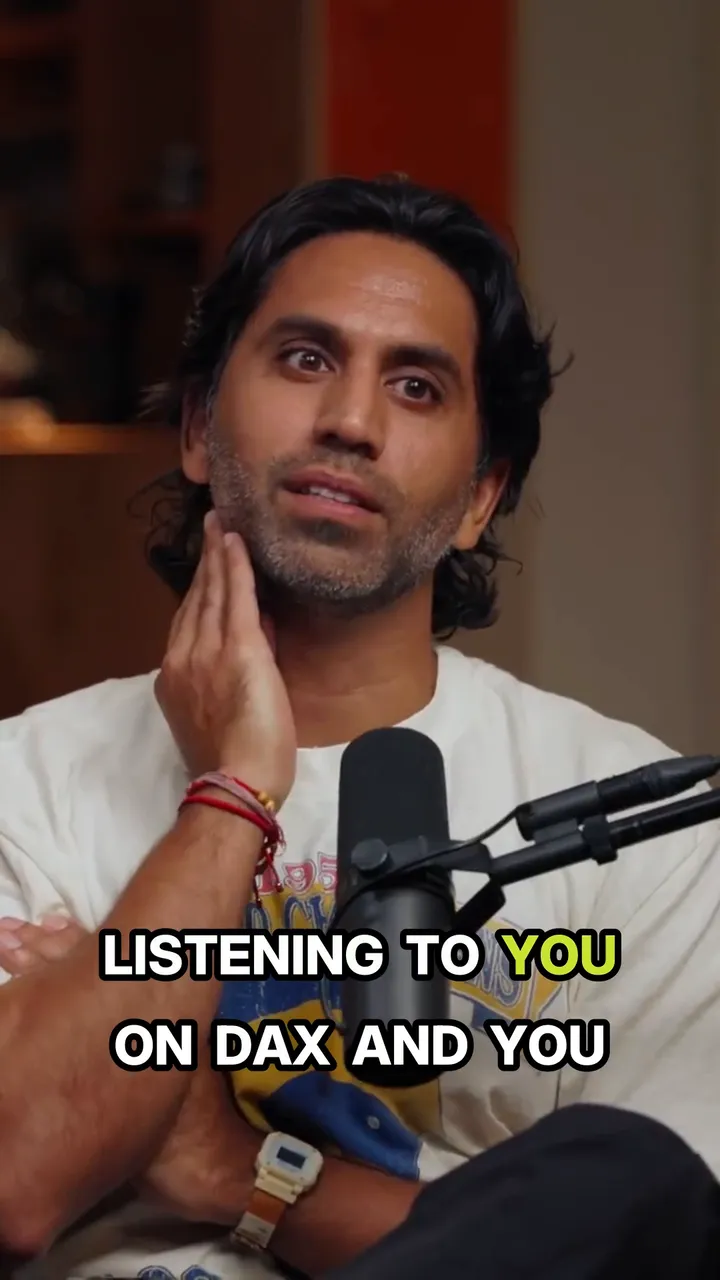
A 9:16 clip exported by CastKit: the speaker centred by the face tracker, with a karaoke caption burned in.
A vertical frame from a Colin and Samir episode with a CastKit caption drawn over it.

How CastKit does it

  1. Open Framing

    In the editor, open the Framing panel.

  2. Choose a rule

    Auto decides per scene. Follow the voice keeps the crop on whoever is talking. Everyone in frame stacks two speakers. Both in one shot keeps two people in one wider crop.

  3. Move one scene

    Drag the crop box on the preview. That scene is locked, so a later pass leaves it alone.

  4. Pick the shape

    Choose 9:16, 1:1, 4:5 or 16:9 at export. Each shape gets its own crop from the same scenes.

What this will not do

The crop is set once per scene, so someone who walks across the shot can drift toward the edge. When no face fills enough of the frame, the scene gets a centred crop. Audio only clips have no picture to frame and export as an audiogram card.

Questions

Can I split one scene into two?
Yes. Split at the playhead on the timeline, then frame each part.
Why is the crop soft?
A vertical crop uses part of the source picture, so a low resolution recording stays soft at 1080p.
Does framing change the captions?
Captions are laid out for the shape you export and kept off faces.

Try it on your own episode

Paste a link. The first episode runs the whole pipeline for nothing, needs no card, and exports every clip in 1080p with a small CastKit mark.

Audio episodes usually finish in a few minutes. Or try it without an account