Skip to content

How to use the clip timeline

Audio episodes usually finish in a few minutes. Or try it without an account

The timeline under the preview shows the clip's tracks. Click to move the playhead, split scenes and trim B-roll.
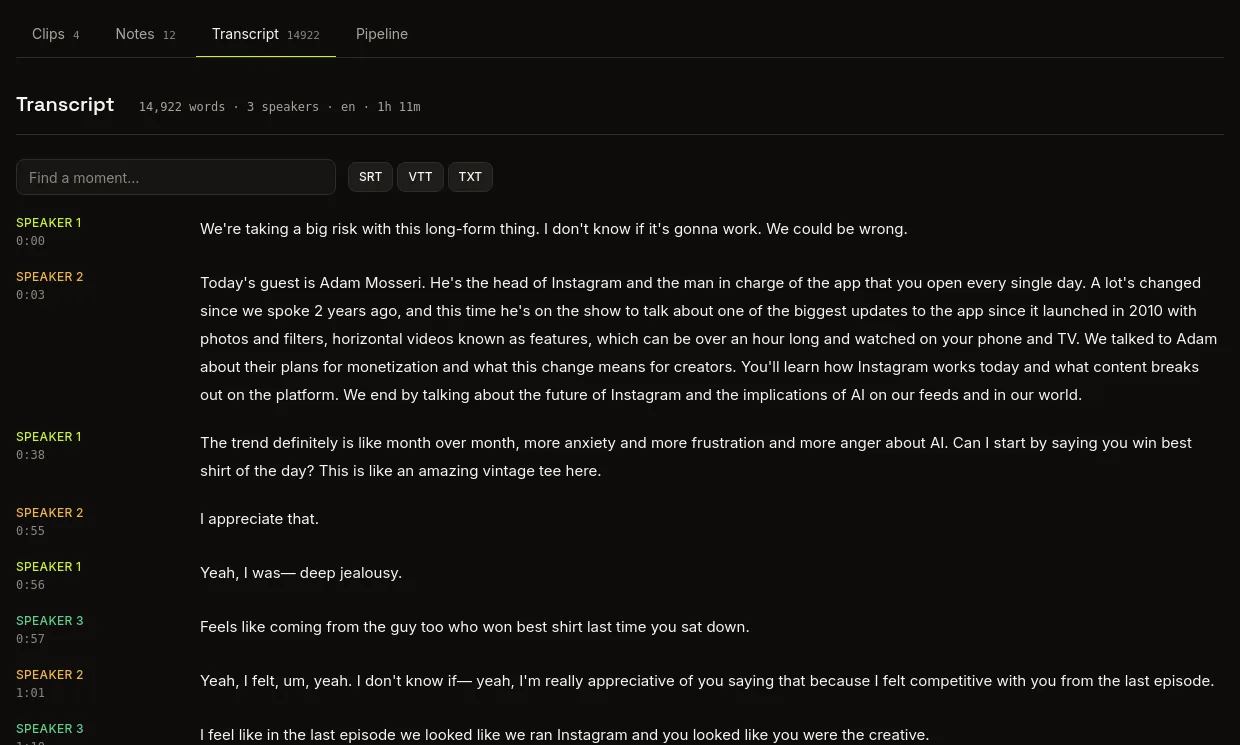
The CastKit transcript tab: speaker labelled turns with timestamps down the left and the transcript beside them.

How CastKit does it

  1. Move the playhead

    Click anywhere on the tracks.

  2. Read the tracks

    Video, Audio, B-roll and Music, with cuts in the sound marked.

  3. Split or join

    Split cuts the scene at the playhead; Join with next merges two.

  4. Trim

    Drag the handles to trim silence at the ends.

What this will not do

Words are cut in the transcript; the timeline is for scenes, B-roll and the last bit of silence.

Questions

Can I cut words on the timeline?
Cut words in the transcript; the timeline follows.
Can I move B-roll?
Trim it on its track or set its start and end.
Does splitting cut anything?
No.

Try it on your own episode

Paste a link. The first episode runs the whole pipeline for nothing, needs no card, and exports every clip in 1080p with a small CastKit mark.

Audio episodes usually finish in a few minutes. Or try it without an account