Skip to content

How to set the length and number of clips

Audio episodes usually finish in a few minutes. Or try it without an account

CastKit picks a length and a number for each episode. Set your own when you have a target in mind.
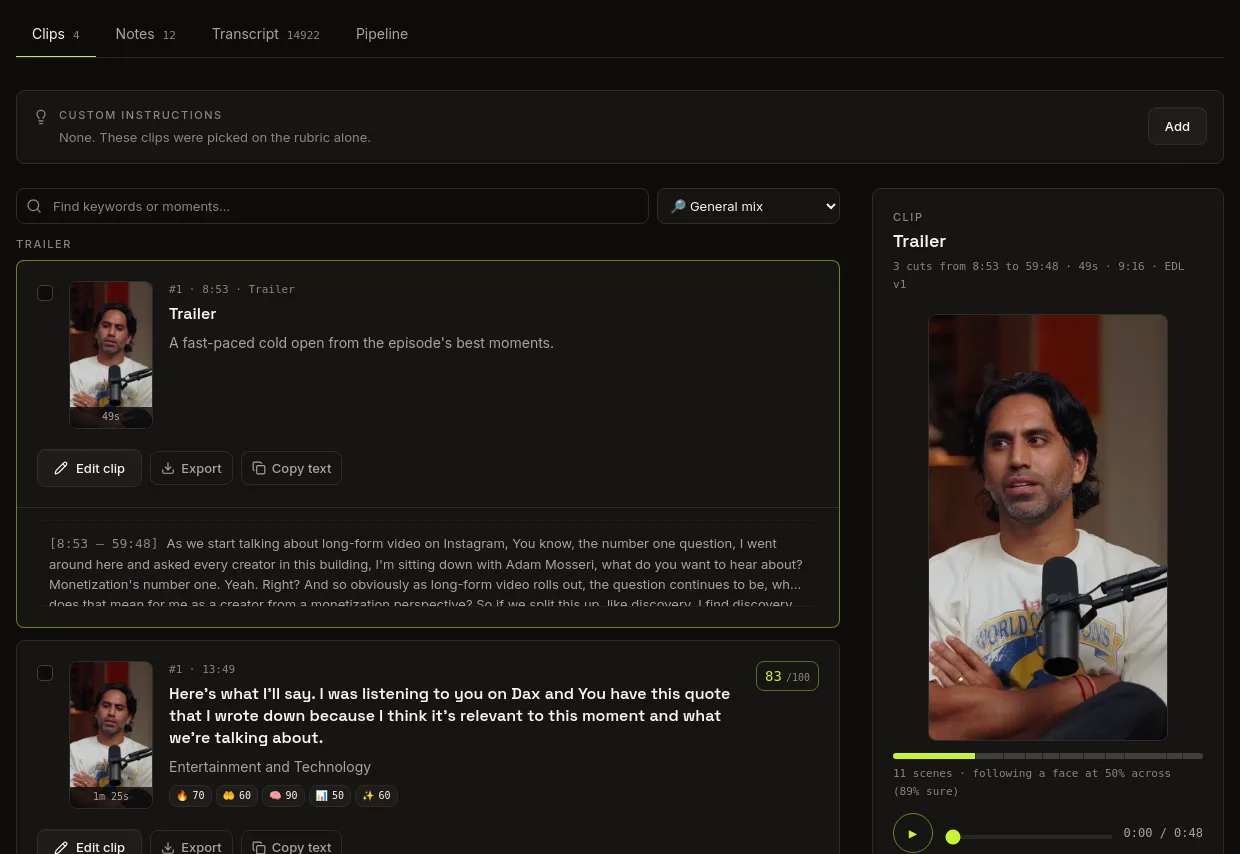
The CastKit clips tab: ranked clips from a Colin and Samir episode with their scores, beside a 9:16 preview and the score breakdown.

How CastKit does it

  1. Open the options

    In the box on Home, find Clip length (seconds) and Number of clips.

  2. Set the length

    Auto, or a target from 20 to 890 seconds.

  3. Set the number

    Leave it on Auto or pick how many you want.

  4. Run it

    Clips come back close to the length you set.

What this will not do

Lengths are targets, not exact: a clip ends where a thought ends, so it can run a little over or under.

Questions

Can I change it after the episode ran?
Yes. Use Run moment detection again with new settings.
Can I write instructions too?
Yes, in What should the clips be about?
What is a good length?
30 to 60 seconds suits most short video apps; longer works for LinkedIn and YouTube.

Try it on your own episode

Paste a link. The first episode runs the whole pipeline for nothing, needs no card, and exports every clip in 1080p with a small CastKit mark.

Audio episodes usually finish in a few minutes. Or try it without an account