Skip to content

How to clip only part of an episode

Audio episodes usually finish in a few minutes. Or try it without an account

A long recording often has a warm-up and a wrap-up nobody needs. Set a timeframe and clips are only picked from the part you care about.
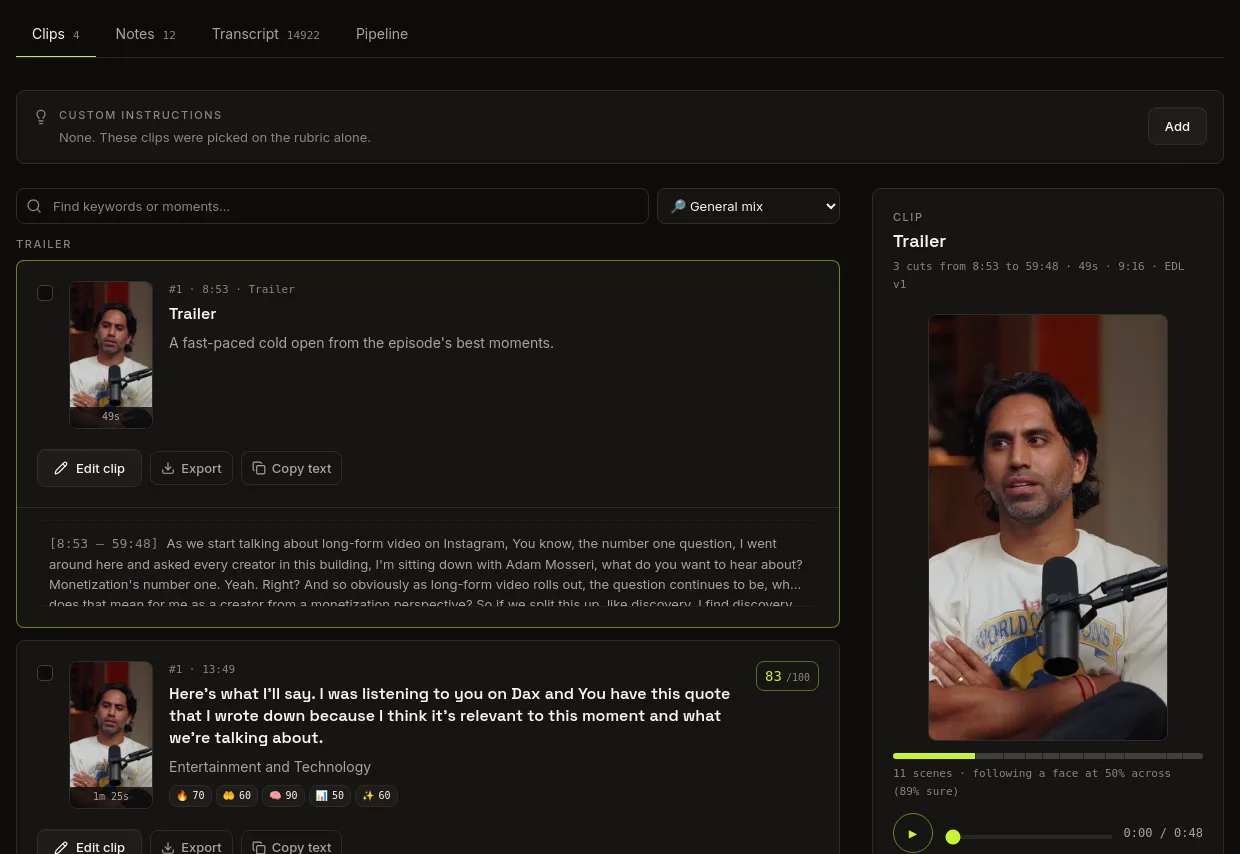
The CastKit clips tab: ranked clips from a Colin and Samir episode with their scores, beside a 9:16 preview and the score breakdown.

How CastKit does it

  1. Paste the link

    Paste the episode link, or pick a file, on Home.

  2. Open Options

    Options sit under the paste box, folded away by default.

  3. Set Clip from and Clip to

    Type a time like 10:00, 1:02:03 or a number of seconds. Leave Clip to empty to go to the end.

  4. Press Make clips

    Clips are only picked from that part. The whole episode is still transcribed, so the transcript and notes cover all of it.

What this will not do

If no part of the conversation fits inside the timeframe, CastKit picks from the whole episode rather than returning nothing. You can still pick your own moment from anywhere in the transcript afterwards.

Questions

Does a timeframe use fewer minutes?
No. The whole episode is transcribed, so minutes count the same.
Can I change the timeframe later?
Set it before you press Make clips. To clip another part afterwards, pick your own moment from the transcript.
What time formats work?
Minutes and seconds (10:00), hours, minutes and seconds (1:02:03), or plain seconds (600).

Try it on your own episode

Paste a link. The first episode runs the whole pipeline for nothing, needs no card, and exports every clip in 1080p with a small CastKit mark.

Audio episodes usually finish in a few minutes. Or try it without an account