Skip to content

How to clip a Google Drive, Dropbox, Loom or Zoom recording

Audio episodes usually finish in a few minutes. Or try it without an account

A recording that lives in the cloud does not need to come through your computer. Paste its share link.
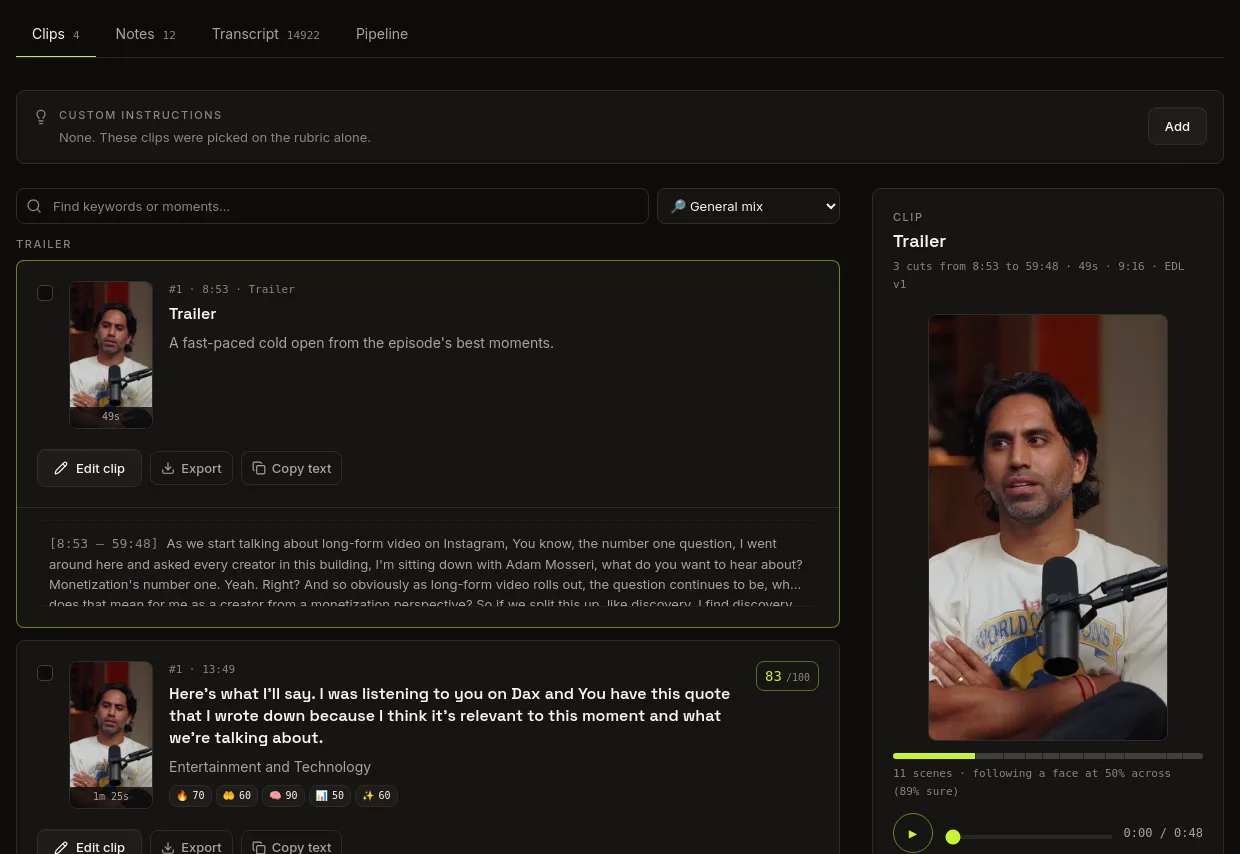
The CastKit clips tab: ranked clips from a Colin and Samir episode with their scores, beside a 9:16 preview and the score breakdown.

How CastKit does it

  1. Share the file

    Set the file to anyone with the link can view.

  2. Copy the link

    Copy the share link from Drive, Dropbox, Loom, Zoom or StreamYard. In StreamYard, open the recording in your past broadcasts and choose Share, or copy the link to a public replay.

  3. Paste it on Home

    Paste it in the box. For a Zoom recording with a passcode, add the passcode where the box asks for it.

  4. Wait for the clips

    The file is fetched, transcribed and clipped like any other episode.

What this will not do

The link has to be open to anyone with it: CastKit does not sign in to your Drive, Dropbox, Zoom or StreamYard account. A StreamYard replay that asks viewers to register cannot be fetched; use the recording's share link instead. If the file is not shared, the box tells you so before it runs.

Questions

Does it work with a private file?
No. Share it with anyone who has the link, or upload the file.
Is my Zoom passcode stored?
It is used to fetch the recording and is masked in our request logs.
Is it on the free episode?
Yes.

Try it on your own episode

Paste a link. The first episode runs the whole pipeline for nothing, needs no card, and exports every clip in 1080p with a small CastKit mark.

Audio episodes usually finish in a few minutes. Or try it without an account