Skip to content

How to add zoom effects to a clip

Audio episodes usually finish in a few minutes. Or try it without an account

A slow zoom adds movement to a static shot and puts weight on a line. CastKit zooms are set per scene or placed on key phrases for you.
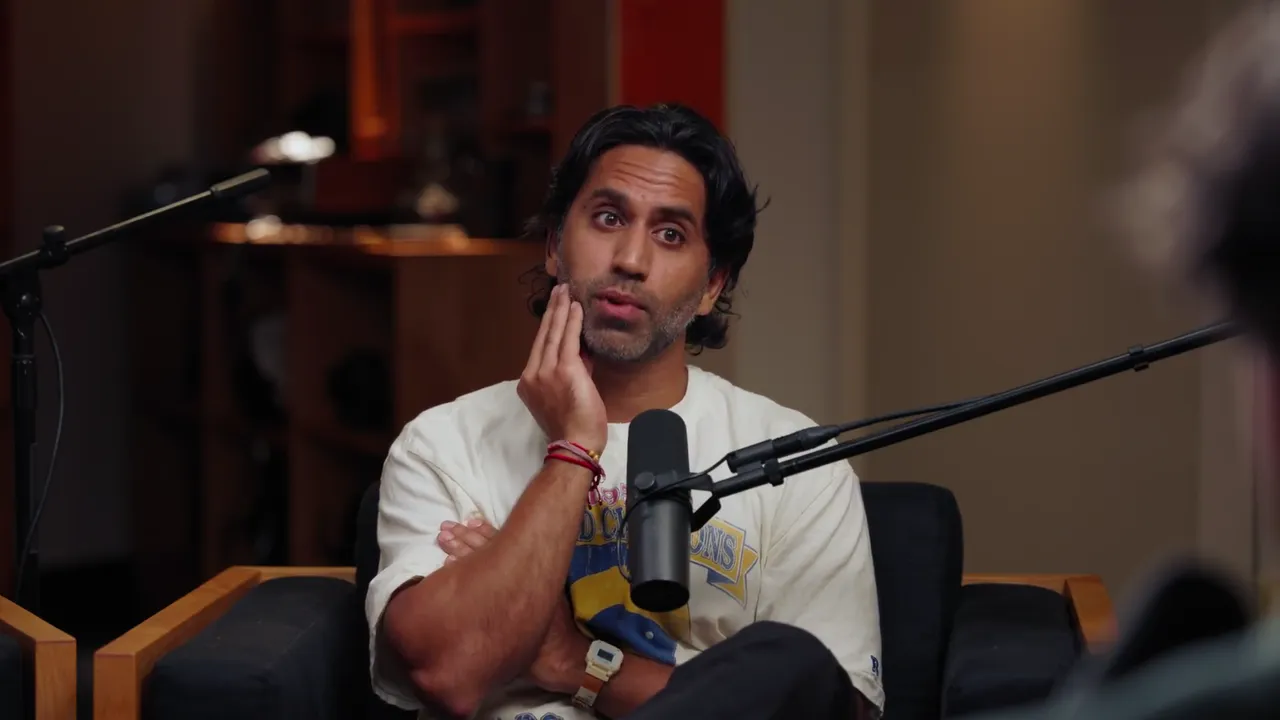
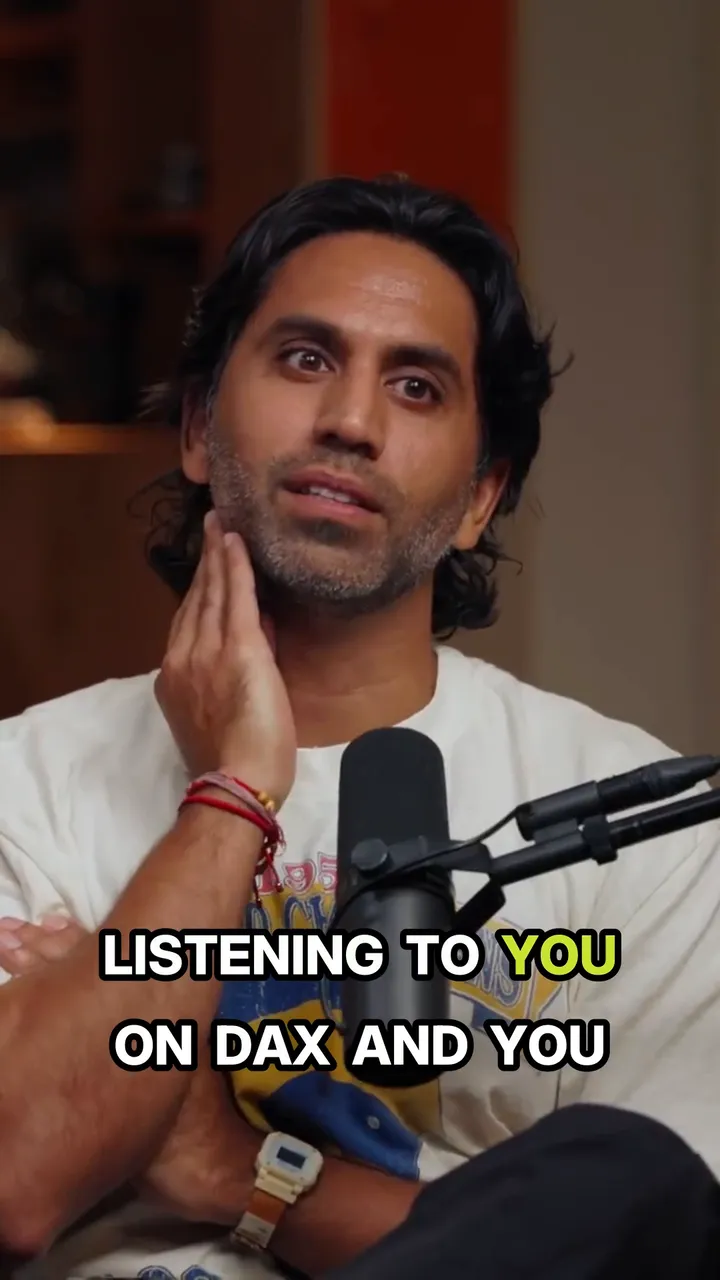
A 9:16 clip exported by CastKit: the speaker centred by the face tracker, with a karaoke caption burned in.
A vertical frame from a Colin and Samir episode with a CastKit caption drawn over it.

How CastKit does it

  1. Open the Effects tab

    In the clip editor, choose the scene in Scene and switch on Zoom enabled.

  2. Set the amount

    Amount above 1 zooms in, below 1 zooms out. Pick an easing for how it moves.

  3. Or let it place them

    Switch on Zoom on key phrases to zoom where the strongest lines are said, or Zoom out at start to open wide.

  4. Export

    The zooms render into the video.

What this will not do

A zoom crops further into the frame, so heavy zooms on a low resolution recording look soft. Key phrase zooms follow the transcript and can land on a line you would not have picked, so watch the result.

Questions

Is it a jump cut zoom?
No. These are slow, eased zooms across a scene, not instant punch ins.
Can I zoom out?
Yes. An amount under 1 zooms out.
Does the crop still follow the speaker?
Yes. The zoom is applied on top of the scene's crop.

Try it on your own episode

Paste a link. The first episode runs the whole pipeline for nothing, needs no card, and exports every clip in 1080p with a small CastKit mark.

Audio episodes usually finish in a few minutes. Or try it without an account