Add animated captions to TikTok videos
Most TikTok is watched with the sound low, and captions that pop word by word are what keep a talking clip readable. CastKit transcribes the clip, times every word, and burns in captions in one of 25 styles, with highlights, emojis and your own colours. The preview is the same renderer the export uses.
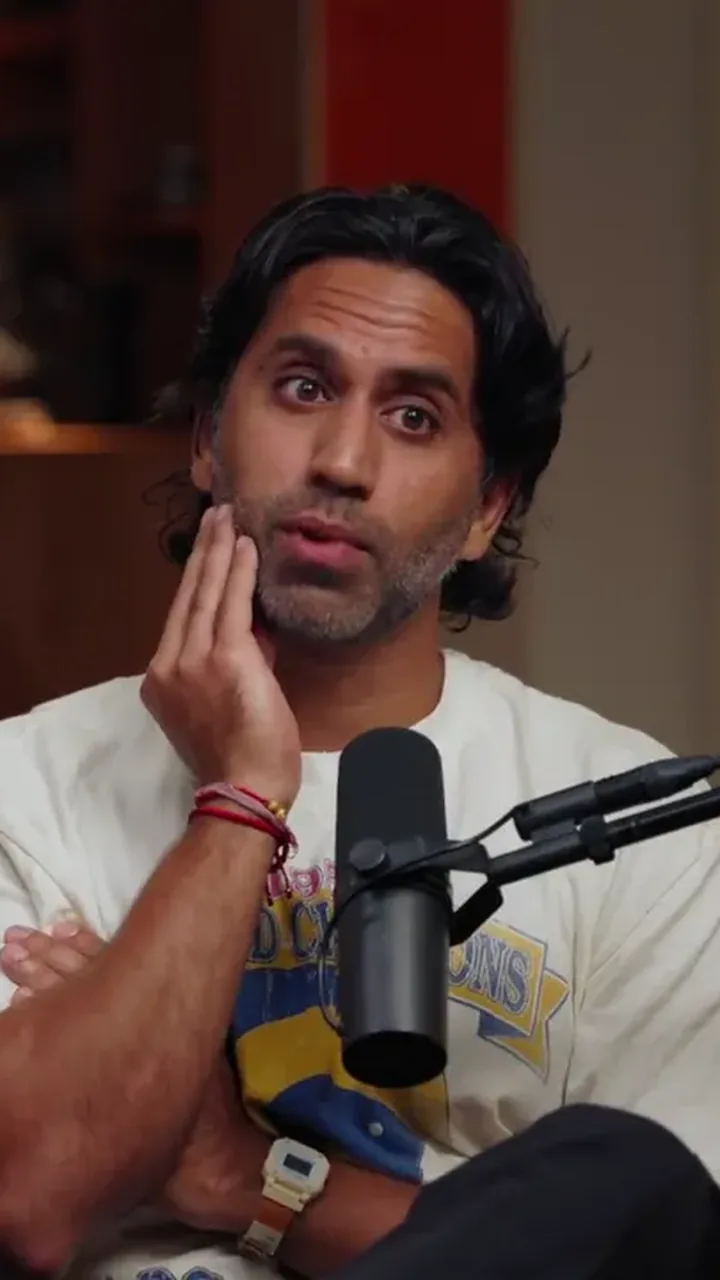
Choose a caption preset to redraw the caption on the frame above.
How CastKit does it
Paste the episode
Get vertical clips
Pick the style
Export
What this will not do
These are burned in captions, part of the picture, not TikTok's own caption track, so viewers cannot switch them off. Keep them clear of the bottom of the frame, where TikTok puts its own text. The export follows your plan: every clip in 1080p with a small CastKit mark on the free plan, every export with no mark on a paid plan.
Questions
- Are the captions animated?
- Can I change the words?
- Can I move them?
Try it on your own episode
Paste a link. The first episode runs the whole pipeline for nothing, needs no card, and exports every clip in 1080p with a small CastKit mark.