Make split screen podcast clips with both speakers in view
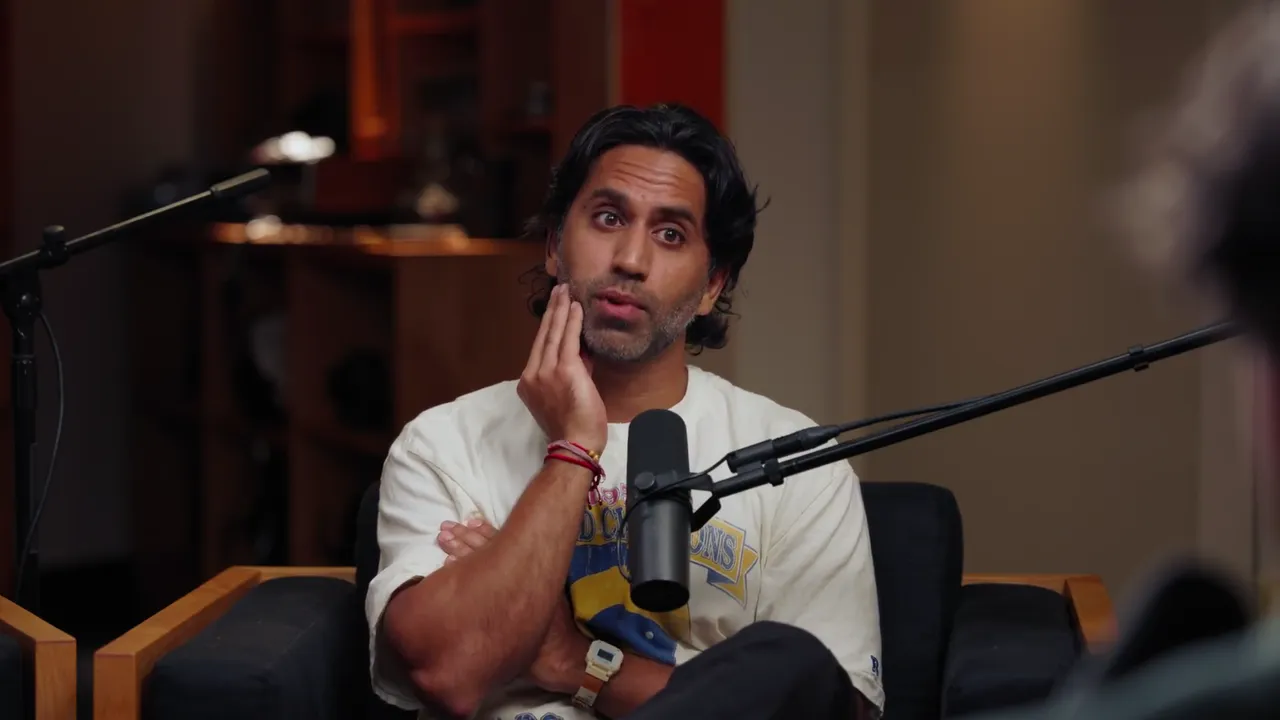
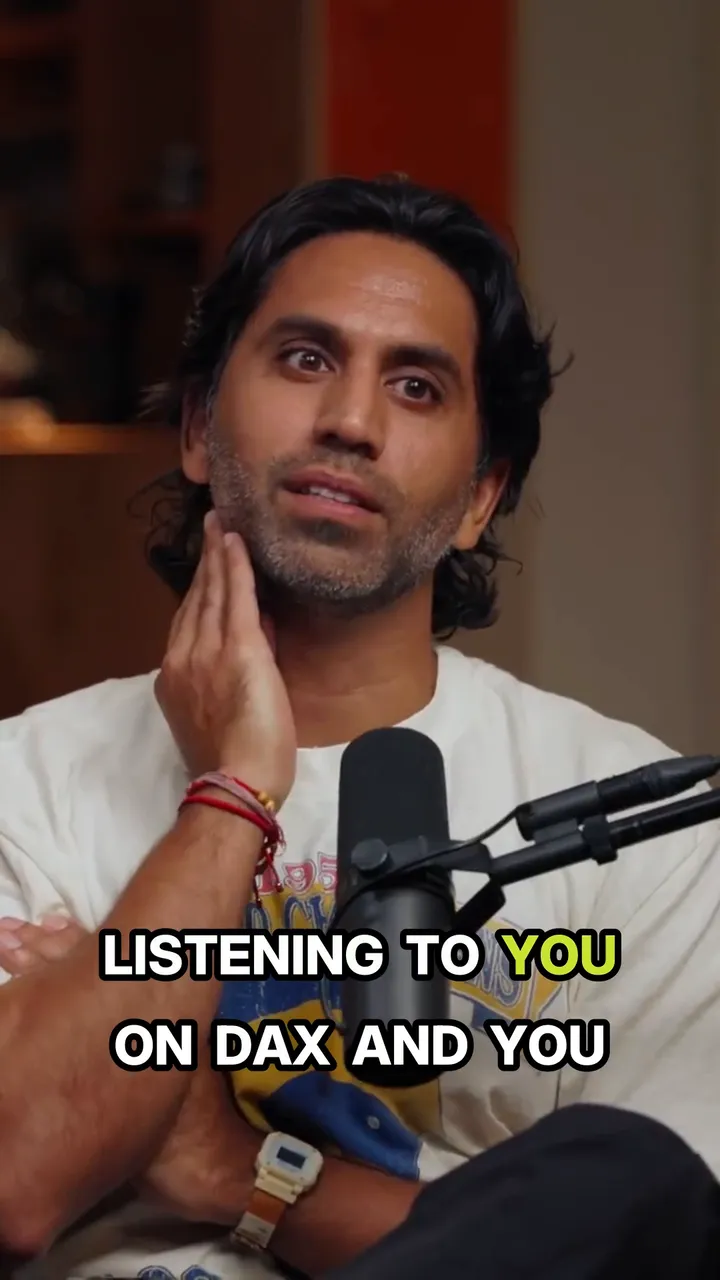
When a back and forth is the point of the clip, cutting between faces loses half of it. The Both in one shot layout stacks two crops in a vertical frame, one per speaker, so the listener sees the reaction as well as the line. Each half has its own crop box that you can move.
How CastKit does it
Paste the episode
Open a clip
Choose Both in one shot
Export
What this will not do
The split layout holds two people. A recording of three or more needs Everyone in frame or Follow the voice, which switches between them. The two halves come from the same recording, so both speakers have to be in the shot. The export follows your plan: every clip in 1080p with a small CastKit mark on the free plan, every export with no mark on a paid plan.
Questions
- How many people fit?
- Can only part of the clip be split screen?
- Does it work from two separate recordings?
Try it on your own episode
Paste a link. The first episode runs the whole pipeline for nothing, needs no card, and exports every clip in 1080p with a small CastKit mark.