Skip to content

How to manage notifications

Audio episodes usually finish in a few minutes. Or try it without an account

CastKit tells you when an episode is ready, when auto-import adds an episode and when something needs you.
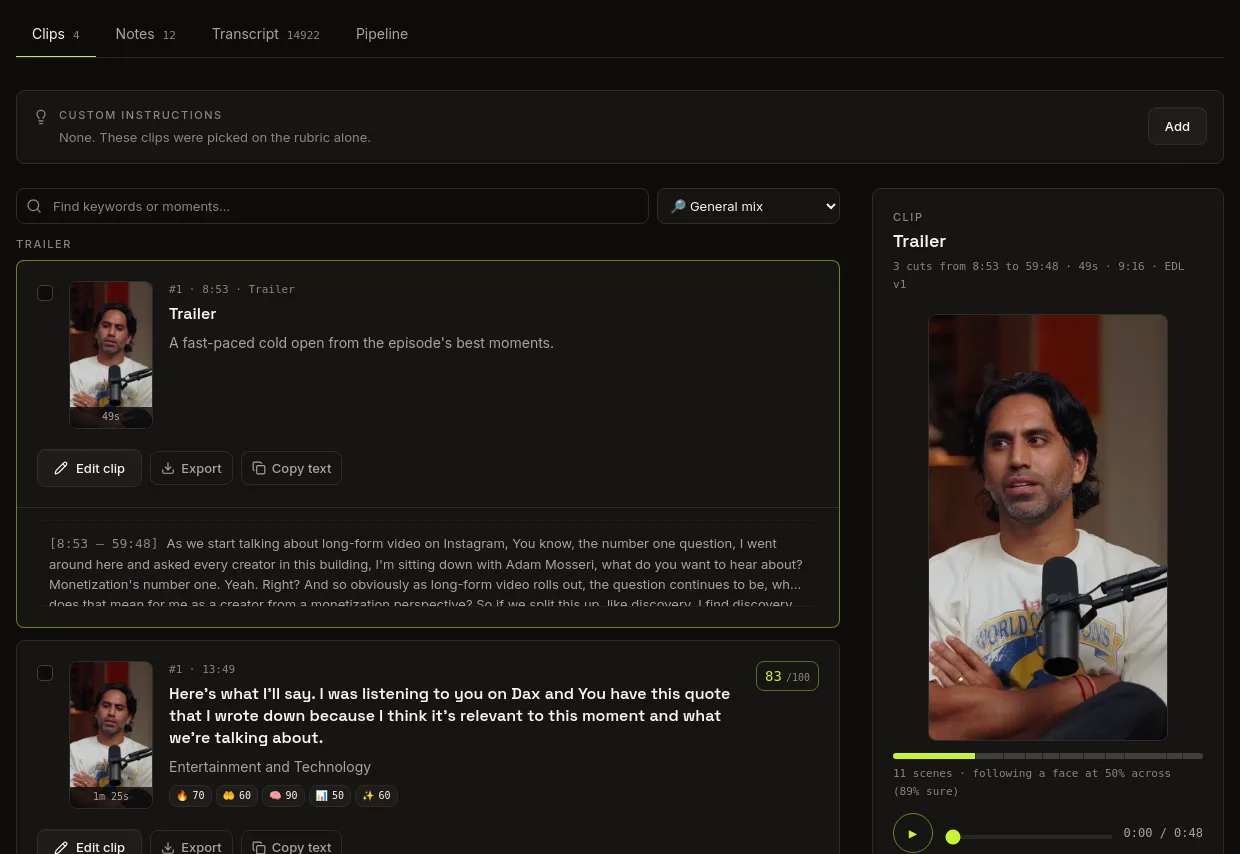
The CastKit clips tab: ranked clips from a Colin and Samir episode with their scores, beside a 9:16 preview and the score breakdown.

How CastKit does it

  1. Open the bell

    Notifications are listed in the workspace.

  2. Mark them read

    Mark all read clears the count.

  3. Choose emails

    In Settings, Account, under Email notifications, switch Onboarding tips, Product updates, User feedback requests and Clipping complete.

  4. Keep the useful ones

    Clipping complete is worth keeping if you use auto-import.

What this will not do

Sign in links are always sent when you ask for one; the switches cover the other emails.

Questions

Why did I get a notification?
An episode finished, or an import or export needs you.
Can I turn them off?
Email, yes. The bell stays in the workspace.
Can I get an email when clips are ready?
Yes. Keep Clipping complete on.

Try it on your own episode

Paste a link. The first episode runs the whole pipeline for nothing, needs no card, and exports every clip in 1080p with a small CastKit mark.

Audio episodes usually finish in a few minutes. Or try it without an account