Skip to content

How to choose how captions highlight words

Audio episodes usually finish in a few minutes. Or try it without an account

The highlight is what moves as the words are said. Every word has its own start and end, so the highlight lands exactly when the word does.
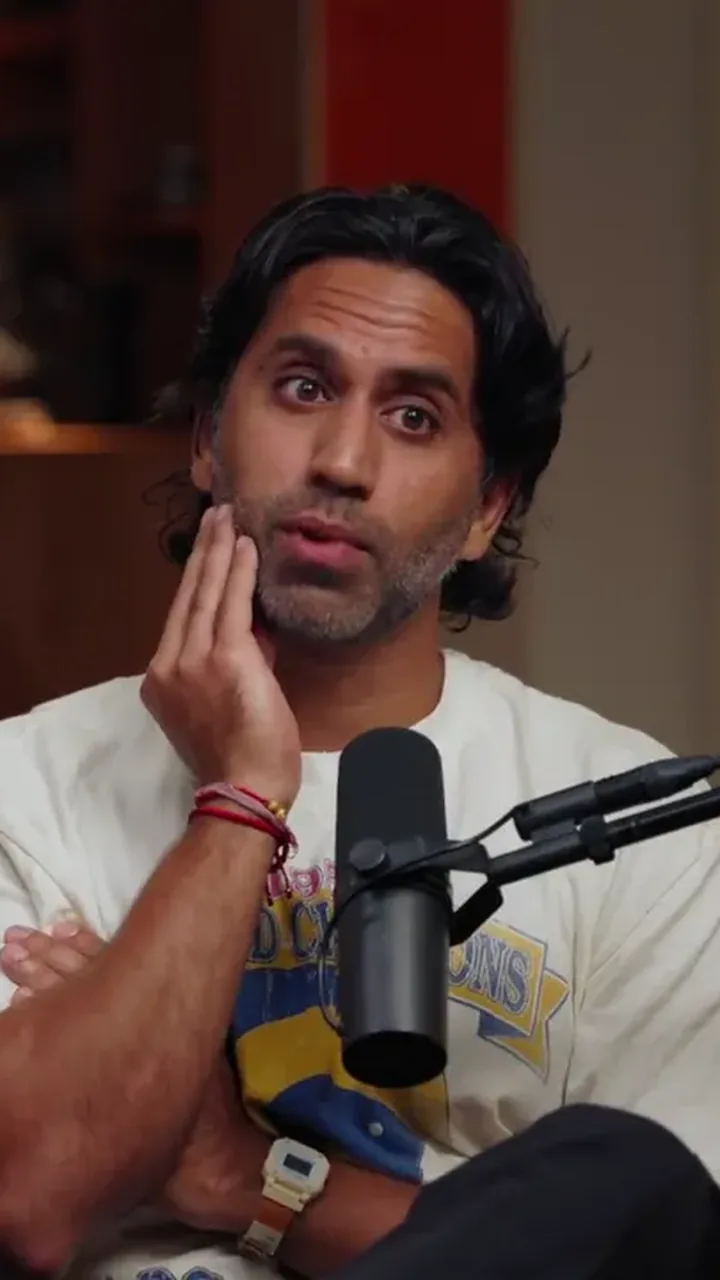
A vertical frame from a Colin and Samir episode with a CastKit caption drawn over it.

Choose a caption preset to redraw the caption on the frame above.

A real exported frame, restyled here by the renderer that burns the export.

See all 25 caption styles

How CastKit does it

  1. Open the Captions tab

    In the clip editor, pick a preset under Caption styles as a starting point.

  2. Pick the mode

    Under Highlight, choose word karaoke to fill each word as it is said, word box to put a box behind it, line for the whole line, or AI keywords to light only the words that matter.

  3. Pick the colour

    Set Highlight color. The default is the preset's colour.

  4. Check the preview

    The preview draws with the same renderer as the export, so what you see is what is burned in.

What this will not do

AI keywords picks the words from the transcript and can light a word you would not have chosen; switch to word karaoke if it misses. The highlight follows the transcript timing, so a misheard word is still highlighted as heard.

Questions

Can I turn the highlight off?
Yes. Choose none and the captions show plain.
Does it work in every language?
Yes. It follows the word timings, whatever the language.
Can every clip use the same mode?
Yes. Save the caption style in a brand template on a paid plan.

Try it on your own episode

Paste a link. The first episode runs the whole pipeline for nothing, needs no card, and exports every clip in 1080p with a small CastKit mark.

Audio episodes usually finish in a few minutes. Or try it without an account