Top Line caption style
Headline captions at the top of the frame, so the lower part stays clear for a face or text already on screen.
The preview shows Top Line on a real clip, drawn by the renderer the export uses, next to three similar styles to compare. In the clip editor it is one of 25 presets, and every setting below can be changed.
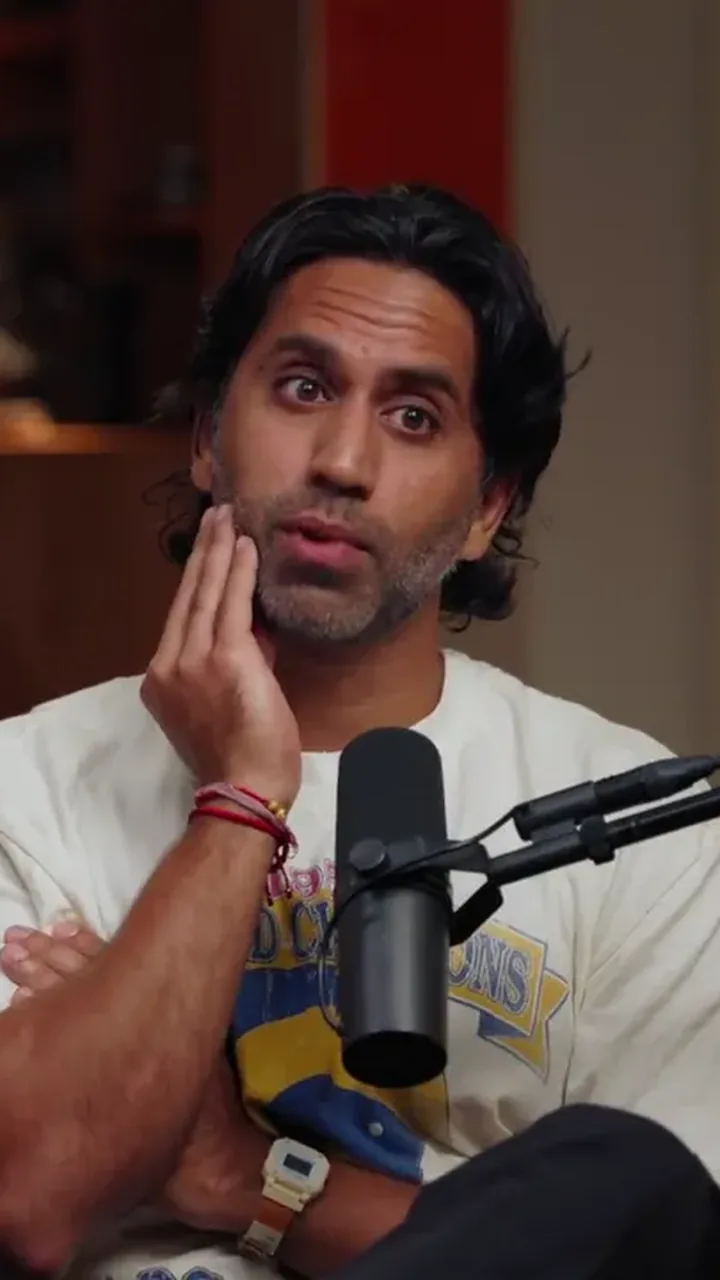
Choose a style to redraw the caption on the frame above.
Top Line settings
Use Top Line on your own clips
Paste an episode
Choose Top Line
Adjust it and export
Good to know
The preview words come from a real clip; your captions come from your own episode, timed to each word. The six built in fonts cover the accented letters of English, French, Spanish, Portuguese, German, Italian, Dutch and the Nordic languages. Captions move up or down to stay clear of faces and of subtitles already in the picture. Free episodes export every clip in 1080p with a small CastKit mark; paid plans export with no mark.
Similar styles
All 25 stylesTry it on your own episode
Paste a link. The first episode runs the whole pipeline for nothing, needs no card, and exports every clip in 1080p with a small CastKit mark.